1. Overview
| Industry | A booking management service for businesses that take appointments, such as hair salons, lessons, clinics and tutoring |
| Site goal | An introduction site that lets owners try the booking screen their customers will see, then request a consultation with the features they need and a plan that fits their size |
| Scope | One page with 13 sections · 1 window (help chat) · 1 screen with its own address (booking and consultation check, 2 tabs) · 5 booking steps |
| Main flows | Service → staff → date and open slot → details → booking confirmed / booking check → canceling reopens the slot / choose features → shop details → recommended plan → consultation request → request check |
Bookings and consultation requests are saved in the browser. They stay on the check screen after a refresh or a return visit, and a slot already booked can't be chosen again with the same staff member.
Connected at rollout: deposit payment, text and email notifications, a shop admin screen (schedule, customer management, statistics), sign-up and login (currently lookup by mobile number or booking number).
2. Challenges
1. People trust a booking service once they've tried it.
Rather than a feature list, owners should be able to tap through the booking window their customers will see, right there, to the end.
2. Two people booking the same slot puts the shop in a bind.
Filled slots must be blocked, and a canceled slot must reopen right away. Customers must be able to find and cancel their own booking by booking number or mobile number.
3. Owners look at a price table and still don't know what to pick.
Choosing the features they need and the number of staff and locations should recommend a fitting plan, and let them request a consultation with exactly those details.
3. Structure
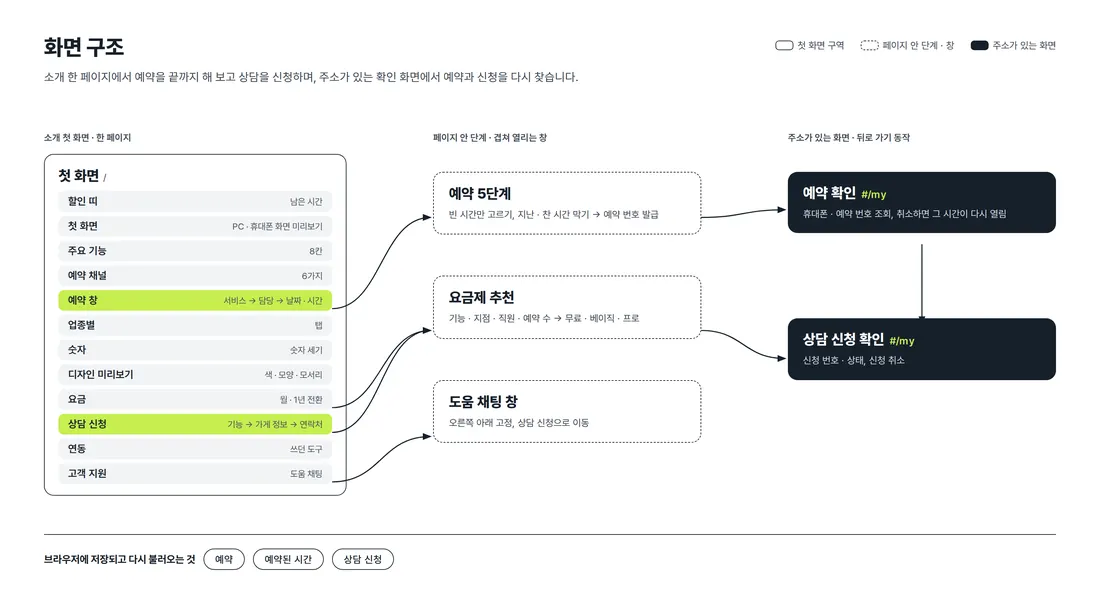
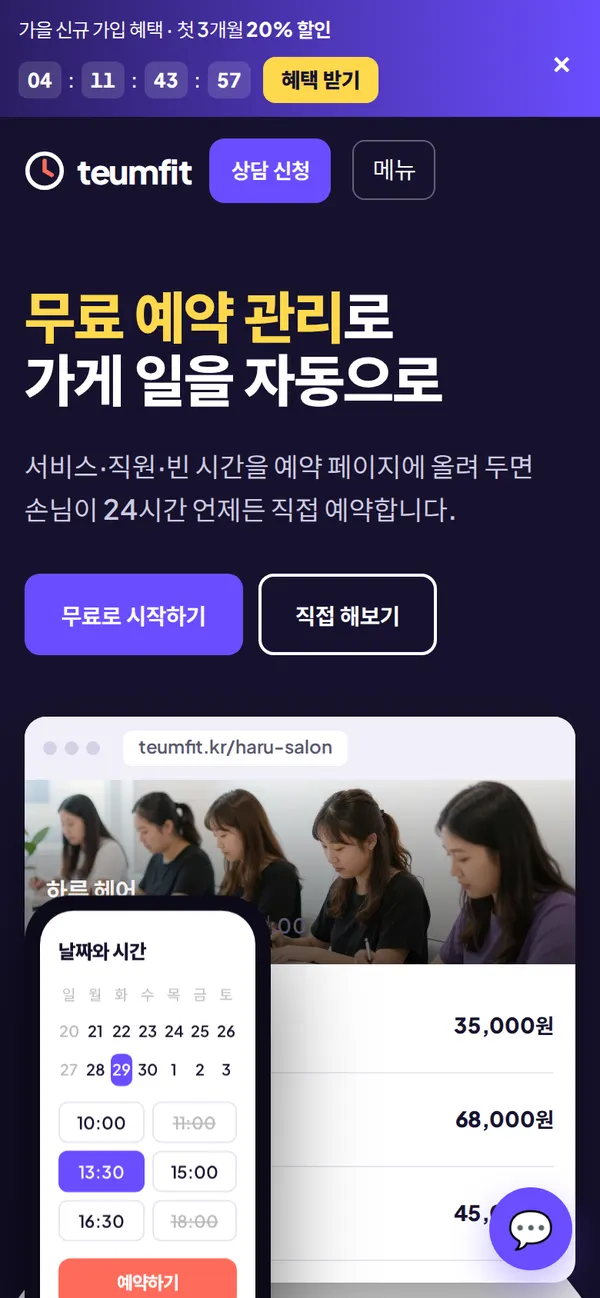
The booking window and consultation request proceed step by step within one first page. Help chat opens at the bottom right without changing pages. Booking and consultation check has its own address (#/my), so back navigation closes it and a refresh keeps it in place.
4. Key Features
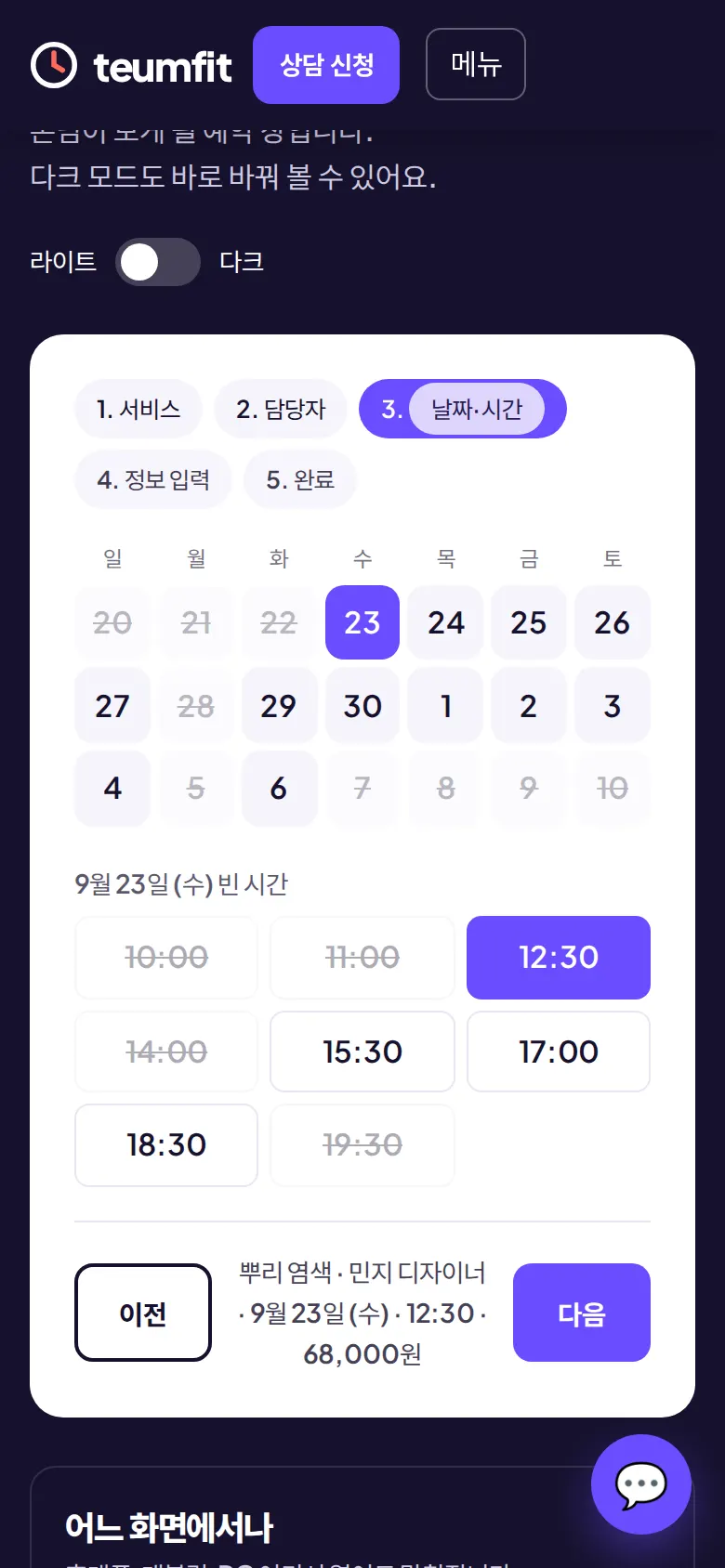
Choose a date and open slot
A calendar shows dates for the next two weeks, blocking past dates and the closed day (Monday). After choosing a date, only that day's open slots can be tapped; past and booked slots are struck through and blocked. A summary bar below keeps showing the chosen service, staff, date and time, and price.
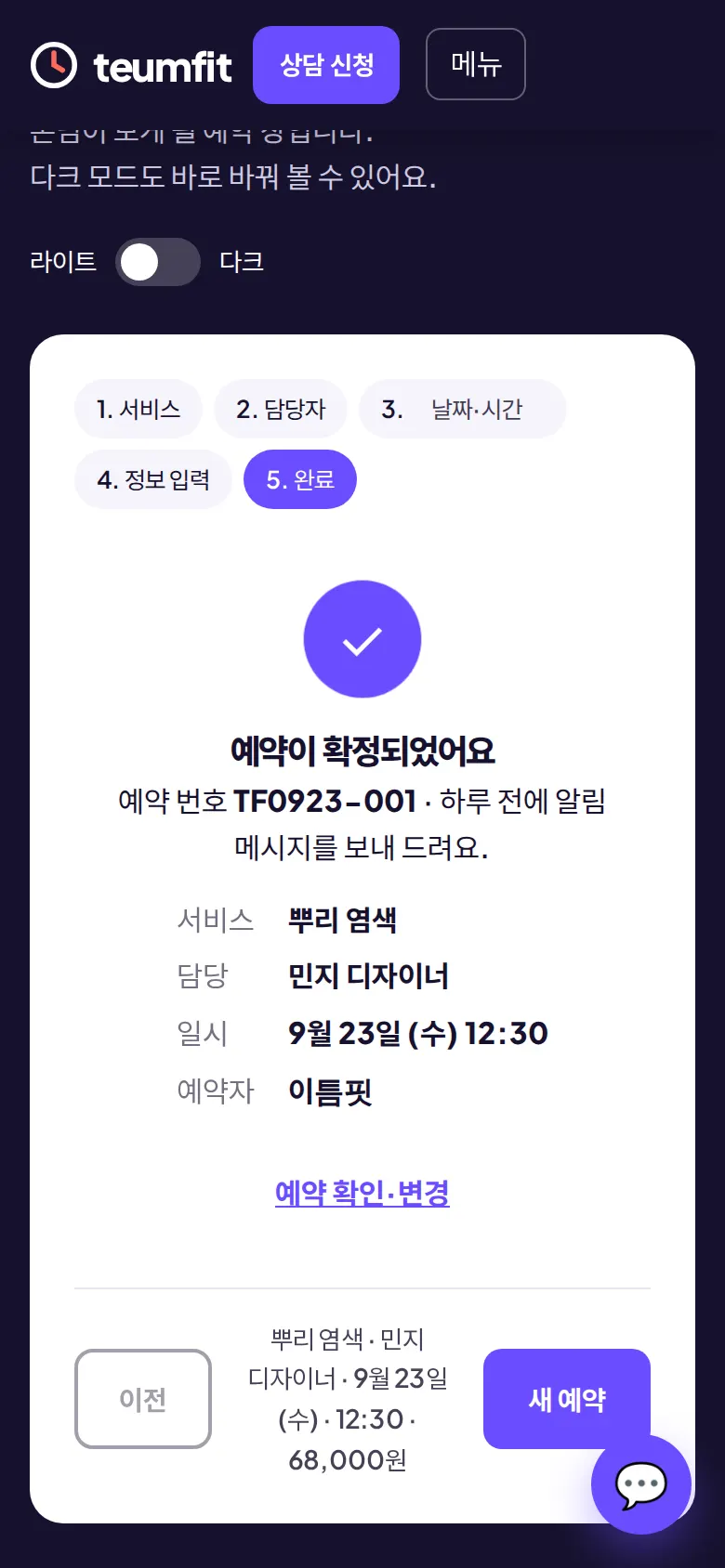
Booking confirmed and booking number
Entering a name and mobile number (format checked) and any requests issues a booking number (BK date-sequence) and saves it. Right before confirming, it checks once more whether the slot has just been filled, and if so sends you back to slot selection. The same staff member and slot can't be chosen again.
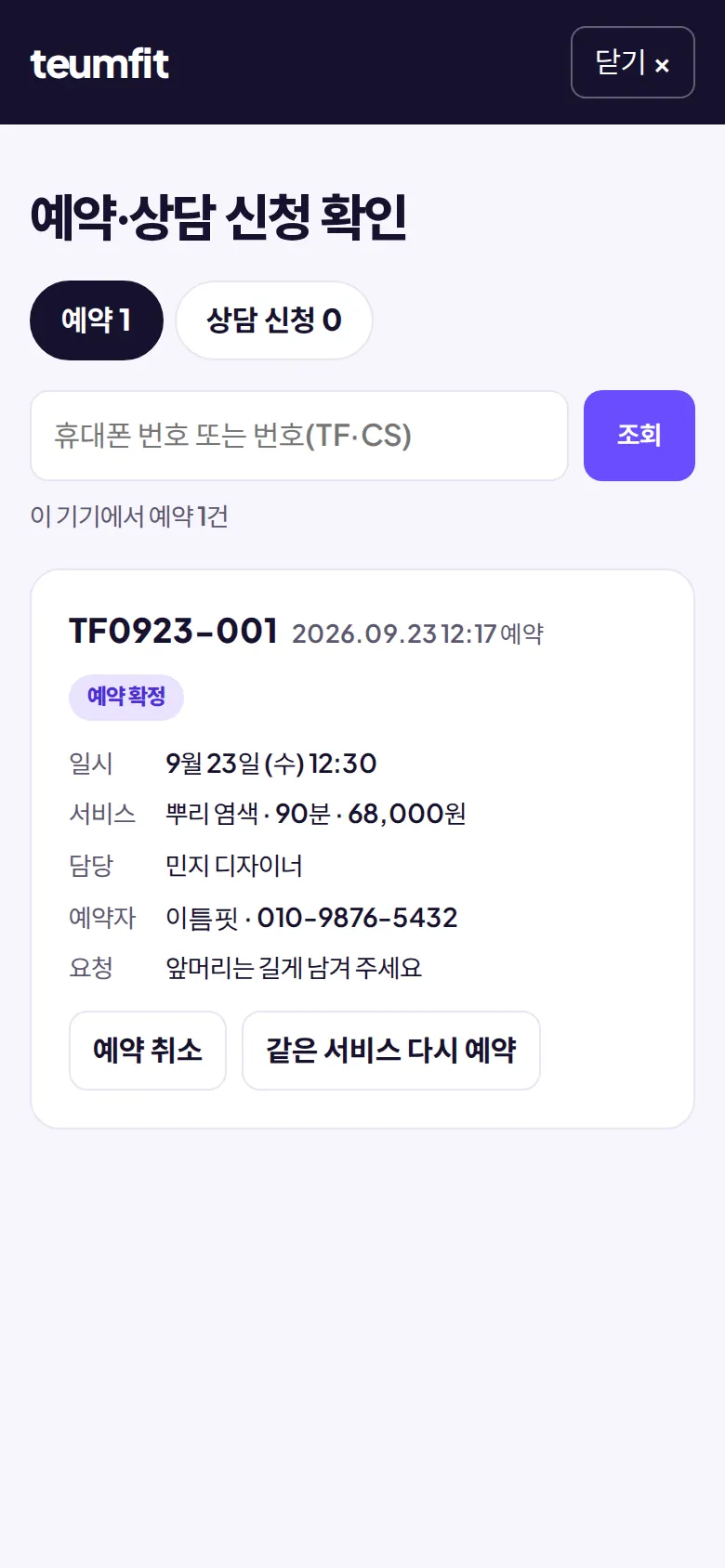
Check and cancel a booking
Bookings are listed newest first, showing date and time, service, staff, name, requests and status together. They can be found by mobile number or booking number, and only upcoming bookings can be canceled. Canceling reopens that slot in the booking window, and "book the same service again" returns with name and number filled in.
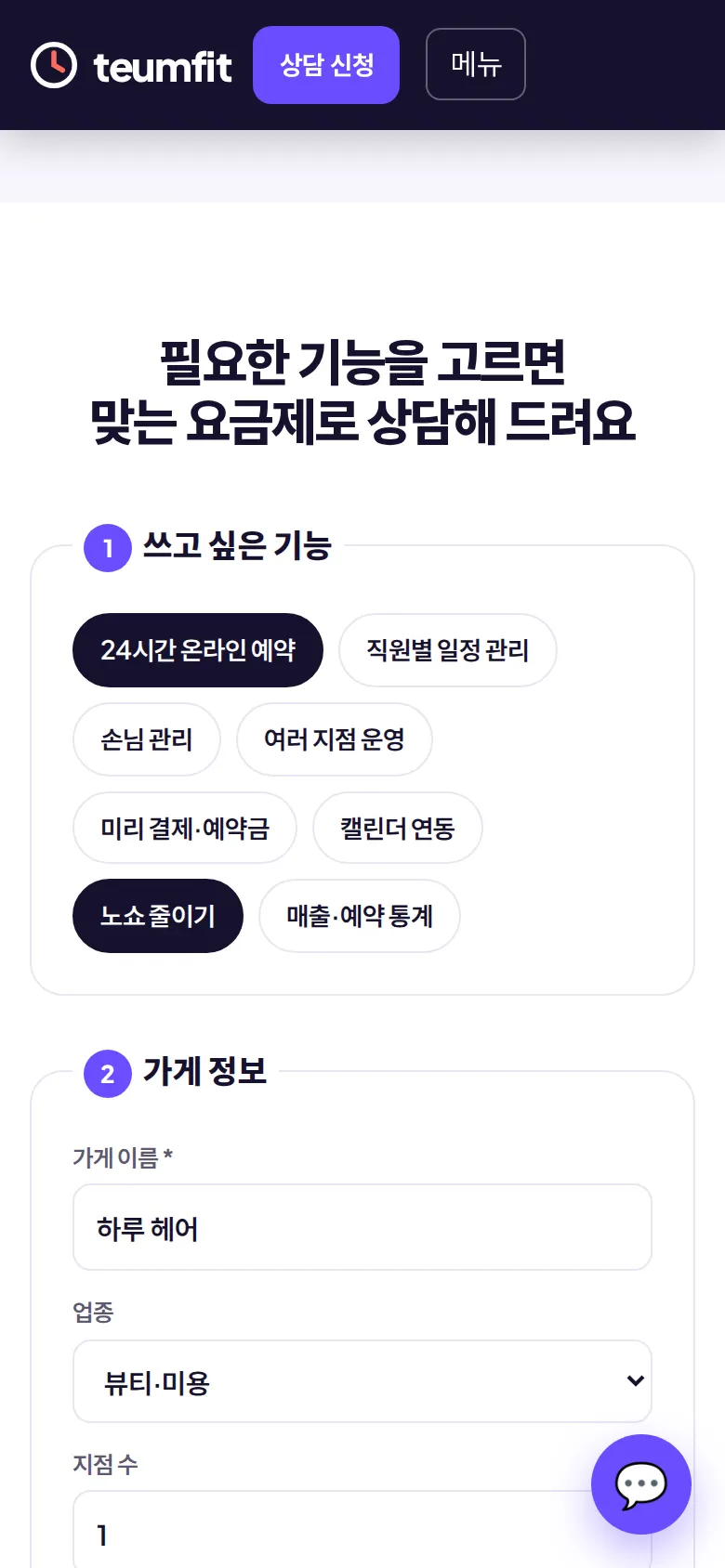
Choose features and get a plan recommendation
Choosing from 8 main features and entering industry, number of locations, number of staff and monthly bookings recommends Free, Basic or Pro and gives the reason in one line. A button in the price table fills that plan into the request form and updates the summary beside it right away.
- Save a consultation request and check itShop name, name and mobile number are required, and a message appears if no feature is chosen. Sending issues a request number (CS-date-sequence), and "check request" opens the consultation tab. Requests can be canceled, and the new status remains after a refresh.
- Booking page design previewChanging among 5 main colors, 3 layouts (card, list, photo) and corner roundness instantly updates the preview of the shop's booking page. The booking window can switch between light and dark mode right away.
5. Build Notes
Show details
| Responsive | Layout changes at 1000 and 700px. On PC: 2-column first screen (text + screen preview), 4-column features, 2-column consultation request (inputs + fixed summary). Below 1000px: collapsed menu and 1-column layout. Below 700px: 1-column features, prices and booking options, and 1-column input fields. |
| Fonts | Body Pretendard, English and numbers Plus Jakarta Sans (both free, open fonts). Bundled with the site, so no external requests. The body font keeps only the characters used on this site, cut from 2,010KB to 104KB. |
| Images | 8 webp files, about 288KB in total. The customer support photo loads as it nears the screen. |
| Motion | Built with CSS transitions, no libraries. The phone preview floats, the booking-complete mark pops out, numbers count up, and the dark mode switch animates. With reduced motion turned on in the device, animations stop. |
| Accessibility | Feature and plan choices show keyboard focus, and the plan group and billing-cycle switch have names. Screen readers read out result messages, and secondary text contrast was raised. Esc closes the check screen. Accessibility score 100. |
| Tech | HTML, CSS, JavaScript (no external libraries). Bookings and consultation requests are saved to and read from browser storage (localStorage), and saved bookings are reflected when calculating open slots. The check screen uses its own address (#/my), so back navigation works. Input is displayed as plain text only, so tags never run. |
6. QA
These are results from running the site on PC 1440 and mobile 390 screens and tapping through in the order a real user would. We also checked that saved data is still found after a refresh. (2026-09-23)
| Item | PC 1440 | Mobile 390 |
|---|---|---|
| Screen errors | 0 | 0 |
| Broken files | 0 | 0 |
| Horizontal overflow · clipped text | 0 | 0 |
| Function tests | 19 / 19 passed | 19 / 19 passed |
The 19 function tests: go to booking window via the "Try it" menu · switch to annual billing · choose service and staff · choose date and open slot · empty-field messages · booking confirmed with booking number · same staff and slot blocked from rebooking · booking check screen · booking kept after refresh · look up by mobile or booking number · canceling reopens the slot · choosing features recommends a plan · price table button fills the form · empty-field messages in consultation request · save request and issue request number · request check screen · request kept after refresh and canceled · booking window dark mode · change color and layout in design preview
Speed and quality scores (out of 100; mobile measured three times on a slow connection, same result each time)
| Performance | Accessibility | Best Practices | SEO | |
|---|---|---|---|---|
| Mobile | 94 | 100 | 100 | 100 |
| PC | 100 | 100 | 100 | 100 |
Mobile: First Contentful Paint 2.1s · Largest Contentful Paint 2.8s · Layout shift 0.001 · Blocking time 0ms PC: First Contentful Paint 0.4s · Largest Contentful Paint 0.6s · Layout shift 0 · Blocking time 0ms
7. Result
Try it live ↗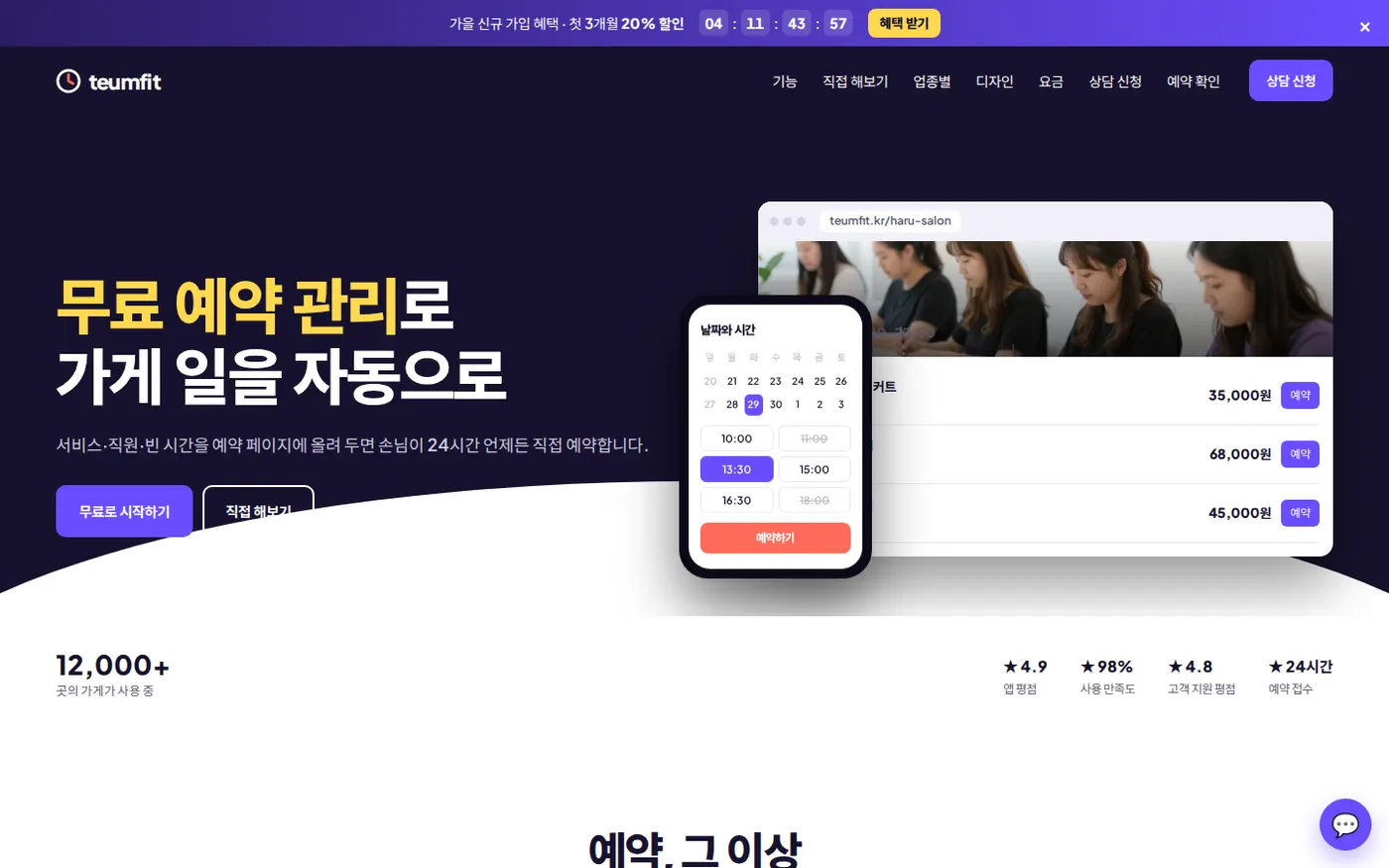
Privacy Policy