1. Overview
| Industry | Study abroad consulting, with a dedicated counselor per country meeting clients in person or by video |
| Purpose | A booking system where clients pick a consultation type, counselor and time, then change or cancel it themselves, while the operator manages sessions and notes on a per-counselor schedule |
| Scope | 4 screens with their own URLs · 2 overlays (booking confirmation, booking detail) · 3 consultation types · 3 counselors · 11 sample bookings |
| Main flow | Type and format → Counselor → Date → Time → Contact → Booking number / Look up booking → Change time or cancel / Admin: schedule → start session → completed or no-show → consultation notes |
Bookings and status, change and cancellation history, consultation notes and times blocked by the operator are saved in the browser. They stay after a refresh or a return visit.
Connected at rollout: payment, text and email notifications and sending video meeting links, per-counselor login and permissions, syncing with external calendars (Google etc.), and server storage shared across devices.
2. Challenges
1. Staff should not have to prevent double bookings by hand.
When bookings come in by phone and messenger, two people land on the same time, or bookings arrive on days off and during lunch. The times a client can pick should be open times from the start.
2. Cut down on change and cancellation requests.
"Can I change my time?" messages arrive several times a day. Clients should find their booking by number and change or cancel it themselves, but this must be blocked right before the session so no empty slots appear.
3. What was discussed should carry into the next session.
If the major, target country and documents heard in the first session get scattered, the next session starts over with the same questions. Each booking should keep its status and consultation notes, and no-shows should be counted separately.
3. Structure
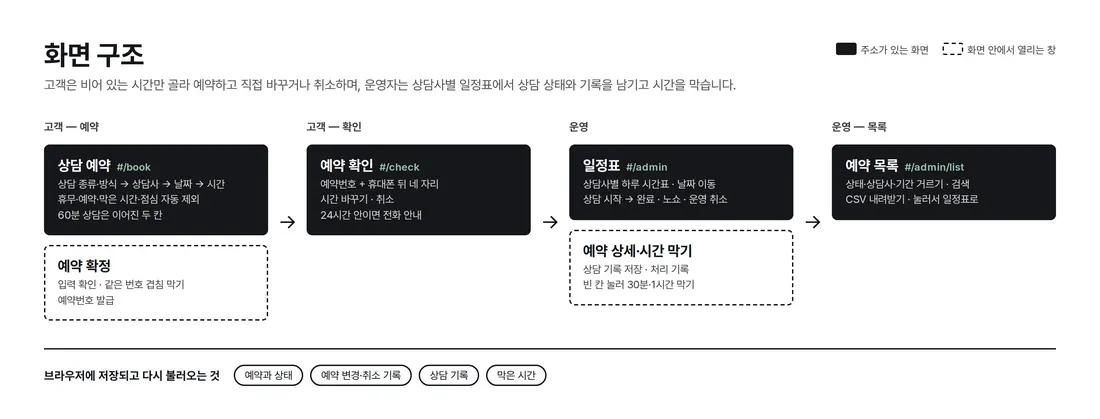
Client screens (book a consultation, check booking) and admin screens (schedule, booking list) are separated by URL. Clicking a booking in the list opens that day's schedule with the booking detail already open. The back button and refresh keep you on the screen you were viewing.
4. Key Features
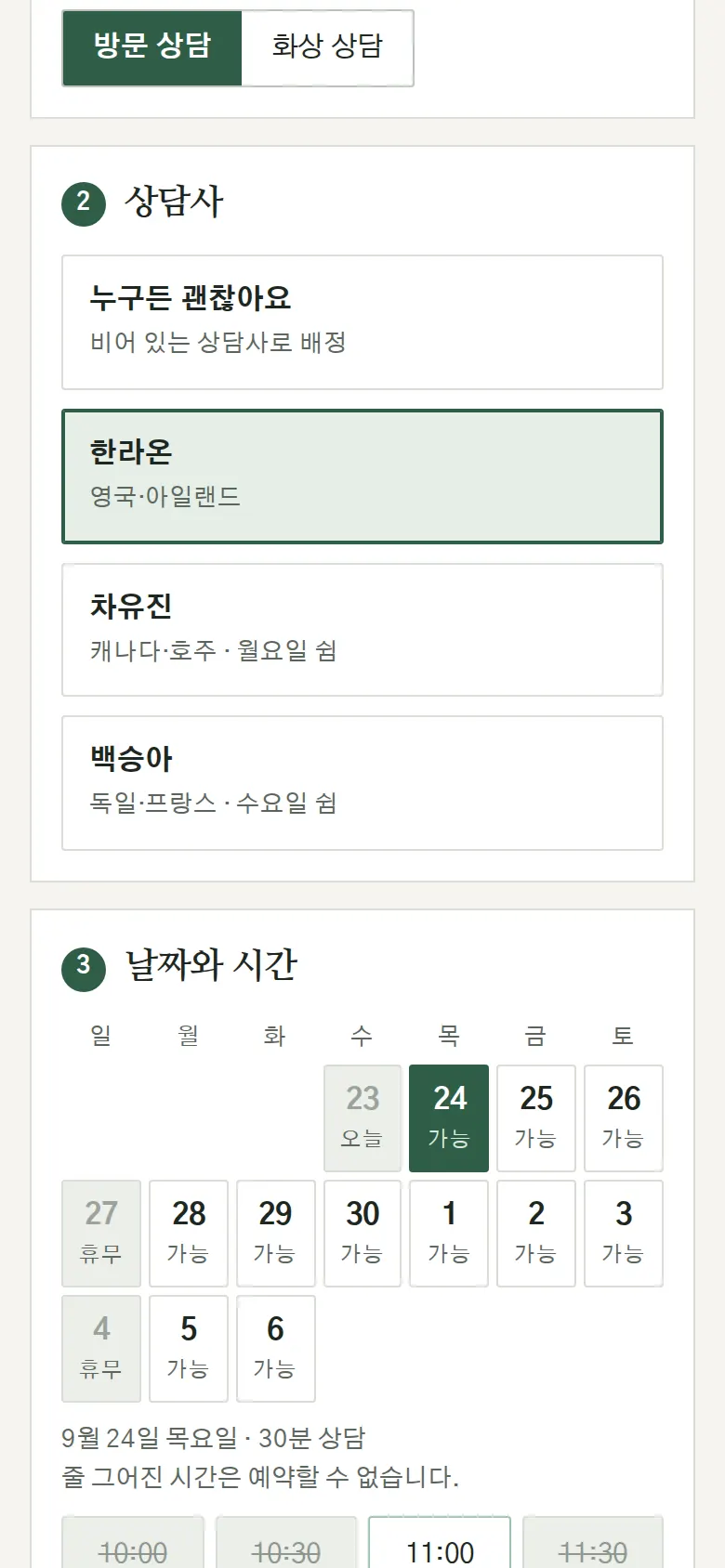
Booking That Shows Only Open Times
After choosing type, counselor and date, 30-minute slots appear. Booked times, times blocked by the operator, lunch and past times are struck through and cannot be chosen. Sundays and the counselor's days off are blocked on the calendar itself, and a 60-minute session can be chosen only when two consecutive slots are open. Choosing "Anyone is fine" assigns a counselor who is free at that time. At the top of the booking screen, the current time is shown for Seoul and cities in the consultation countries (UK, Ireland, Canada, Australia, Germany, France). When the client picks the country they are considering, that country's local time is added to the booking details.
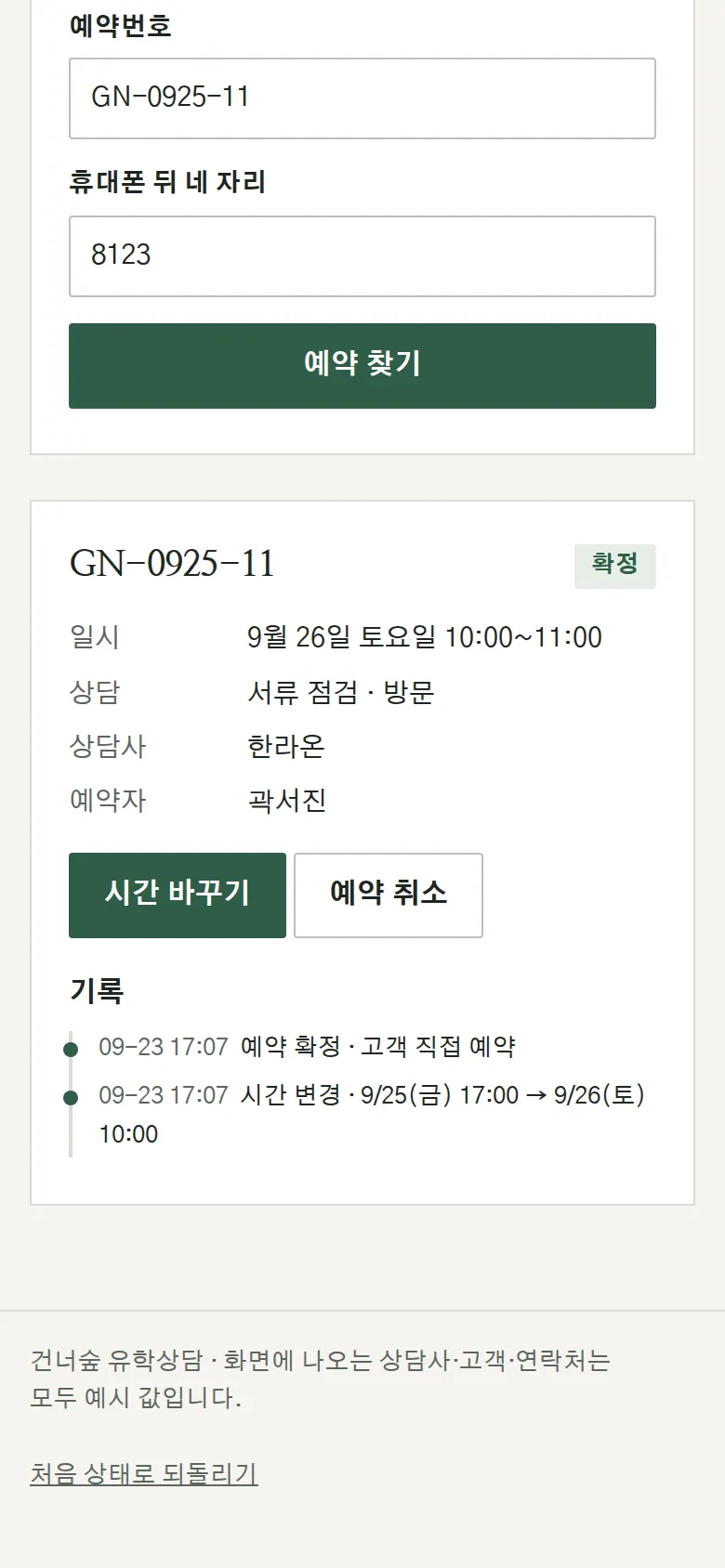
Look Up, Change Time, Cancel
A booking appears only when both the booking number and the last four digits of the phone number match. When the time is changed to another open date and time with the same counselor, the original slot opens again for others. Bookings less than 24 hours away cannot be changed or canceled online, and a message directs the client to call.
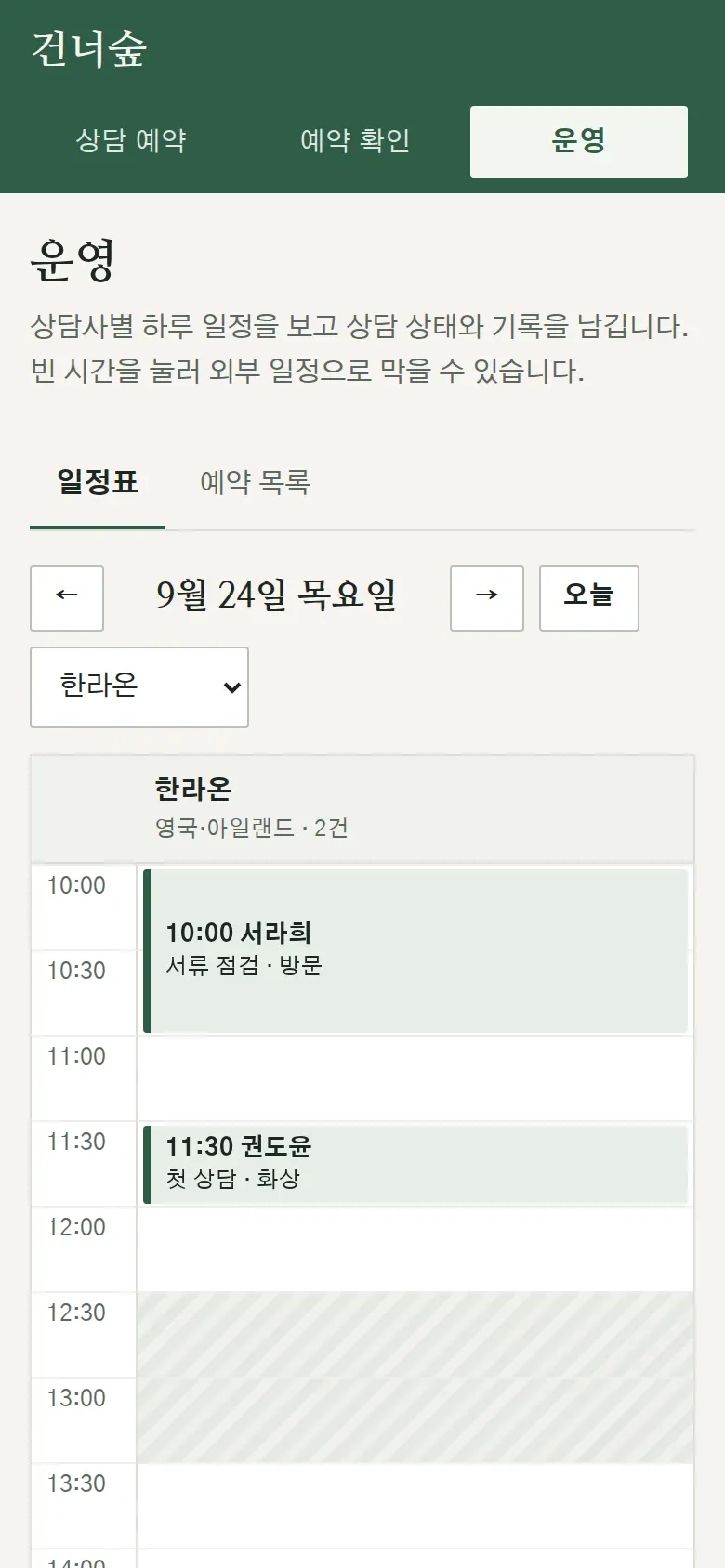
Per-Counselor Schedule
A day view with counselors as columns and 30-minute rows shows bookings and blocked times at their actual length. Days off and lunch are hatched. Move between dates, and click an empty slot to block it with a reason and length (30 minutes or 1 hour). Blocked times disappear from the client screen right away.
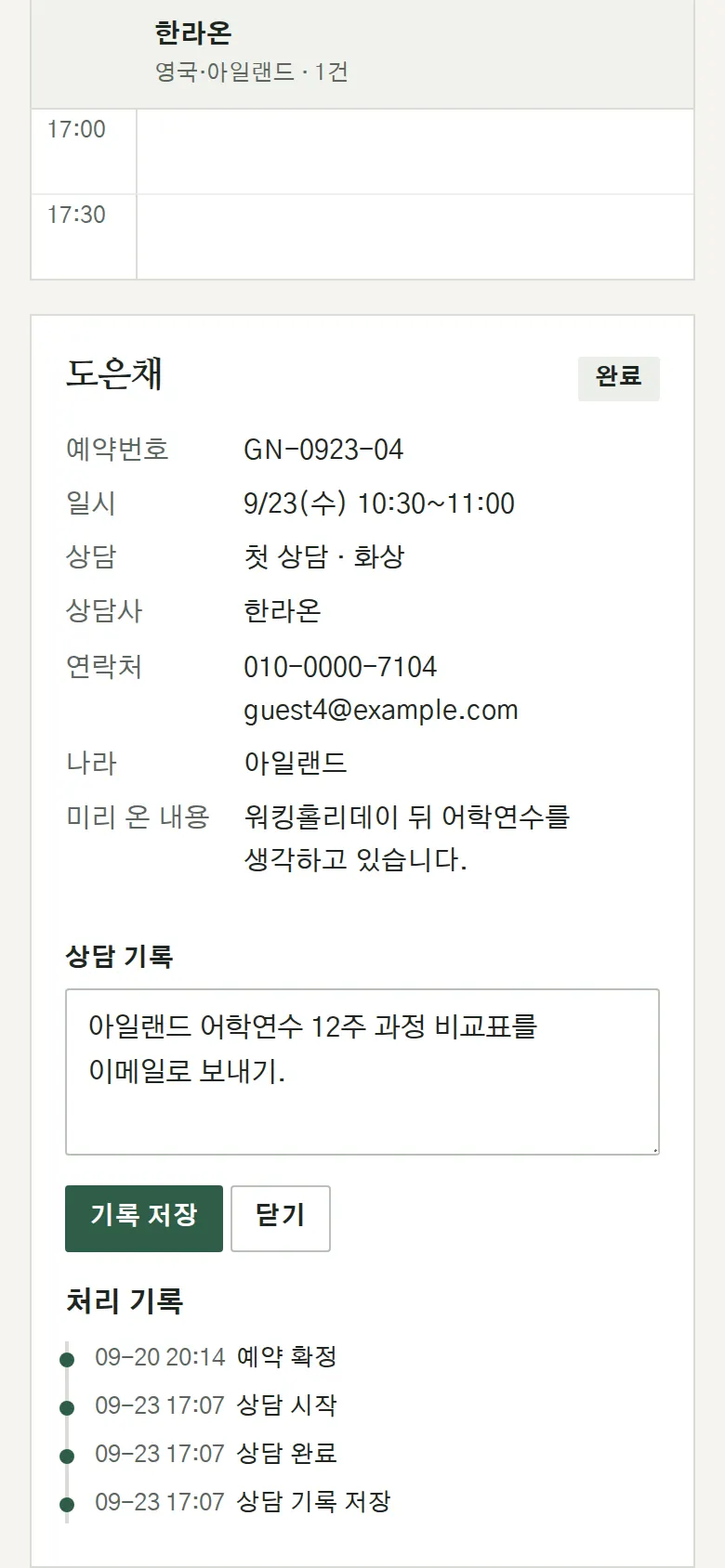
Running Sessions and Consultation Notes
Clicking a booking opens contact details, target country and pre-submitted notes on the side. Change the status from start session → completed, or to no-show or canceled by operator. Saved consultation notes stay attached to the booking, and every action is recorded with a timestamp.
- Booking — Input Checks and Overlap PreventionName, phone and email formats and privacy consent are checked, and focus jumps to the wrong field. Bookings from the same phone number at overlapping times are blocked, and if someone else took the same slot in the meantime, the client is asked to choose again. Once confirmed, a boarding-pass style booking ticket shows the booking number (SA-date-sequence), local time, and the office address or video consultation instructions.
- Booking List and CSVFilter by status, counselor and period (next 7 days, next 14 days, past 7 days, all) and search by name, booking number or contact. The current list downloads as a CSV that includes consultation notes. The CSV is saved so Korean text does not break in Excel.
5. Build Notes
Show details
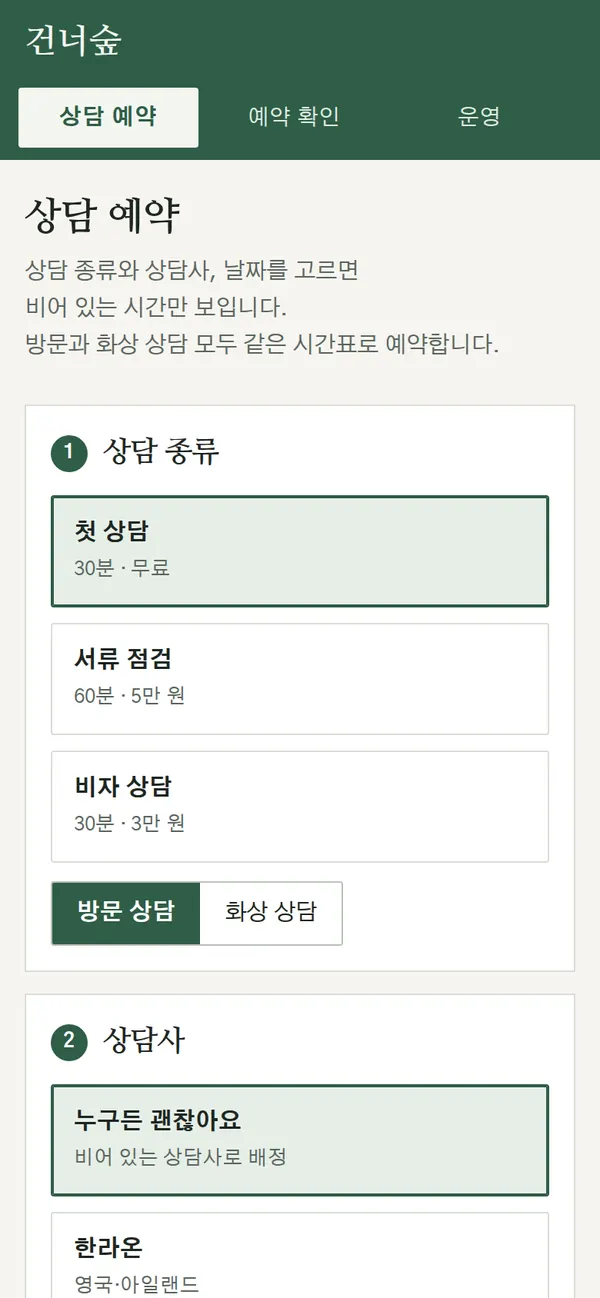
| Responsive | Layout changes at 1000px and 760px. On PC, booking steps and the booking summary box, and schedule and booking detail, sit side by side; below 1000px they stack in one column. Below 760px the menu moves under the logo, options show one per row, time slots four per row, and the schedule one counselor at a time. |
| Fonts | Body and headings in Nanum Gothic, booking numbers and times in B612 (both free, open fonts). Subset to only the characters used: 166KB for all five files. |
| Images | No photos or illustrations, only text and lines. The ticket's perforation, half-circle notches and the hatching for break times are drawn in CSS. Country times are calculated from the browser's time zone data, so daylight saving time is handled. |
| Motion | The only motion is notices that fade in and out. It stops when the device's reduce-motion setting is on. |
| Accessibility | Date and time slots are all buttons, so they can be chosen with the keyboard, and the chosen slot is announced as pressed. Blocked dates and times are labeled "unavailable" with the reason. Every input has a label, and errors are shown with both a border and a sentence. |
| Technology | HTML, CSS and JavaScript (no external libraries). Bookings and records are saved to and read back from browser storage (localStorage). Whether a slot is open is decided by one function that checks business hours, lunch, counselor days off, other bookings and blocked times together, so booking, changes and the schedule all use the same rules. Screens are split by URL (#/check etc.) so the back button works, and user input is rendered as plain text so tags never run. |
6. QA
Results from opening the site on PC 1440 and mobile 390 screens and clicking through in the order a real user would. We also checked that saved data is still there after a refresh. (2026-09-23)
| Item | PC 1440 | Mobile 390 |
|---|---|---|
| Screen errors | 0 | 0 |
| Broken files | 0 | 0 |
| Horizontal overflow / clipped text | 0 | 0 |
| Function tests | 16 / 16 passed | 16 / 16 passed |
The 16 function tests: Sundays and counselor days off blocked · booked, blocked and lunch times blocked · 60-minute session needs two open slots · empty field and phone format checks · booking confirmed and booking number issued · overlapping booking from the same number blocked · booking lookup after refresh (wrong number blocked) · time changed and original slot reopened · online change and cancel blocked within 24 hours · booking canceled · schedule date navigation and display of bookings and blocked times · start → completed, and notes kept after refresh · find in list and mark as no-show · blocking an open slot blocks it on the client screen · list filter, search and CSV · back button
Speed & quality scores (out of 100; mobile measured three times on a slow connection, median shown · runs: 97, 98, 97)
| Performance | Accessibility | Best Practices | SEO | |
|---|---|---|---|---|
| Mobile | 97 | 100 | 100 | 100 |
| PC | 100 | 100 | 100 | 100 |
Mobile: First Contentful Paint 2.0s · Largest Contentful Paint 2.1s · Layout shift 0 · Blocking time 0ms PC: First Contentful Paint 0.5s · Largest Contentful Paint 0.5s · Layout shift 0 · Blocking time 0ms
7. Result
Try it live ↗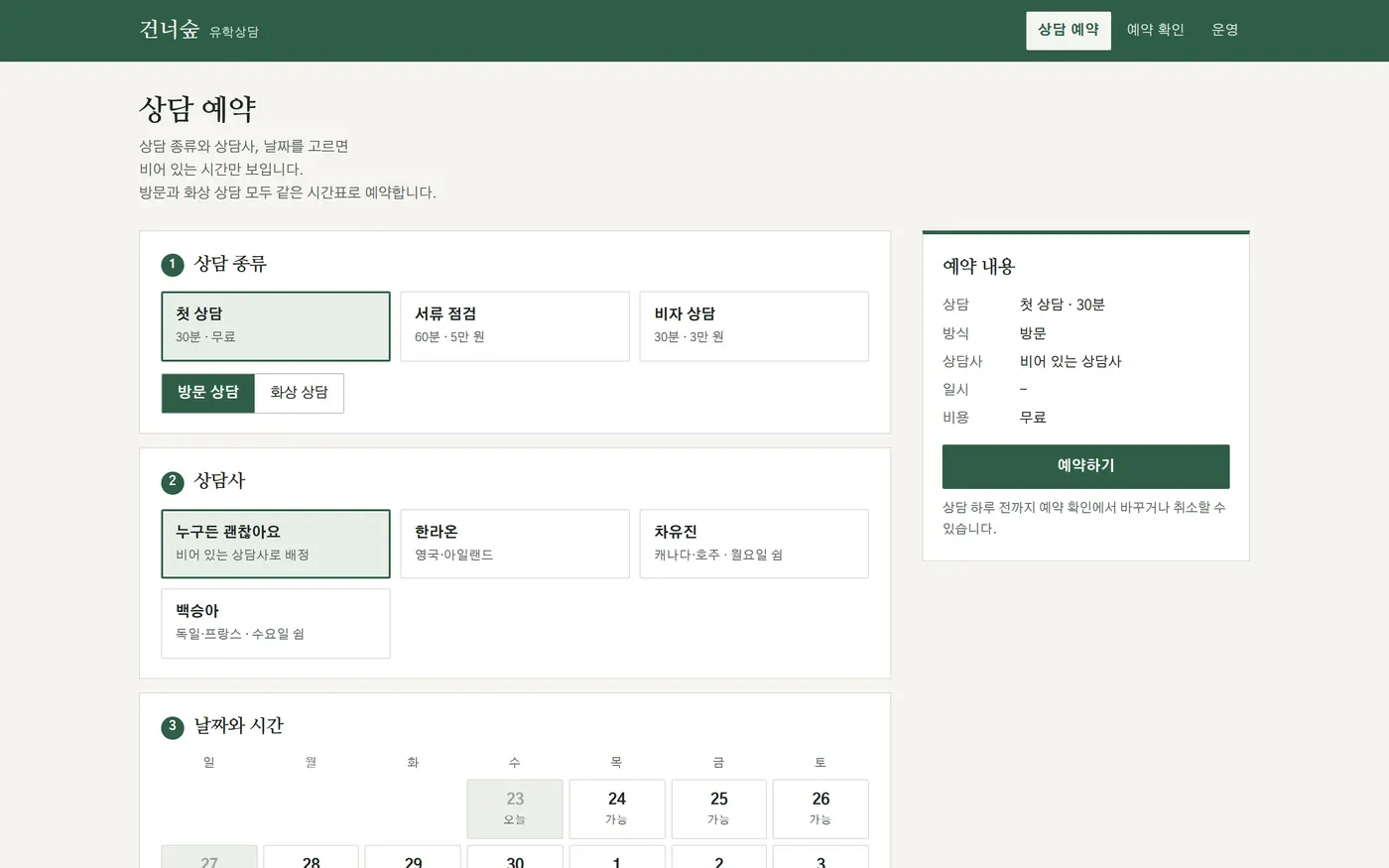
Privacy Policy