1. Overview
| Industry | Online courses from a creator who runs a YouTube channel and sells video lessons |
| Purpose | Link sign-ups and purchases made in the online store to classroom access, so students can watch what they bought right away and the operator manages courses, materials and students in one place |
| Scope | 2 roles (student, operator) · online store member login link · access passes per purchase record · video learning and resume · private resource library · operator course editing, video upload and student management · PC and mobile screens |
| Main flow | Student: browse courses → buy in the store → member link and access check → use videos and materials → progress and resume / Operator: link courses to products → register videos and materials → check students and learning records → handle access and exceptions |
This work kept the existing classroom screens and code and the online store as they were, extended their features and connected the two. Payments and money refunds are handled by the online store; the classroom manages who can watch what, and until when.
The screens on this page show de-identified test data, not real student or order records. The live service requires login and a server, so there is no "try it yourself" link.
Outside the scope: payments and money refunds (handled by the online store), DRM or full recording prevention (expiring video URLs do not replace this), and progress tracking for external iframe playback.
2. Challenges
1. The people who buy in the store and the people who watch are disconnected.
Purchases happen in the store; learning happens in the classroom. Who bought which product should flow straight into classroom access, so the operator no longer opens access one person at a time.
2. Students forget how far they got.
For courses with many videos, the place to resume and the remaining videos should come first when they return. It should resume from the same spot on mobile too.
3. Exceptions like expiry, duplicate purchases and refunds pile up without evidence to decide on.
When purchase, learning and download records are mixed together, it is hard to find the basis for cutting or reopening access. Records should be kept separately, including the operator's history of checking and acting on them.
3. Structure
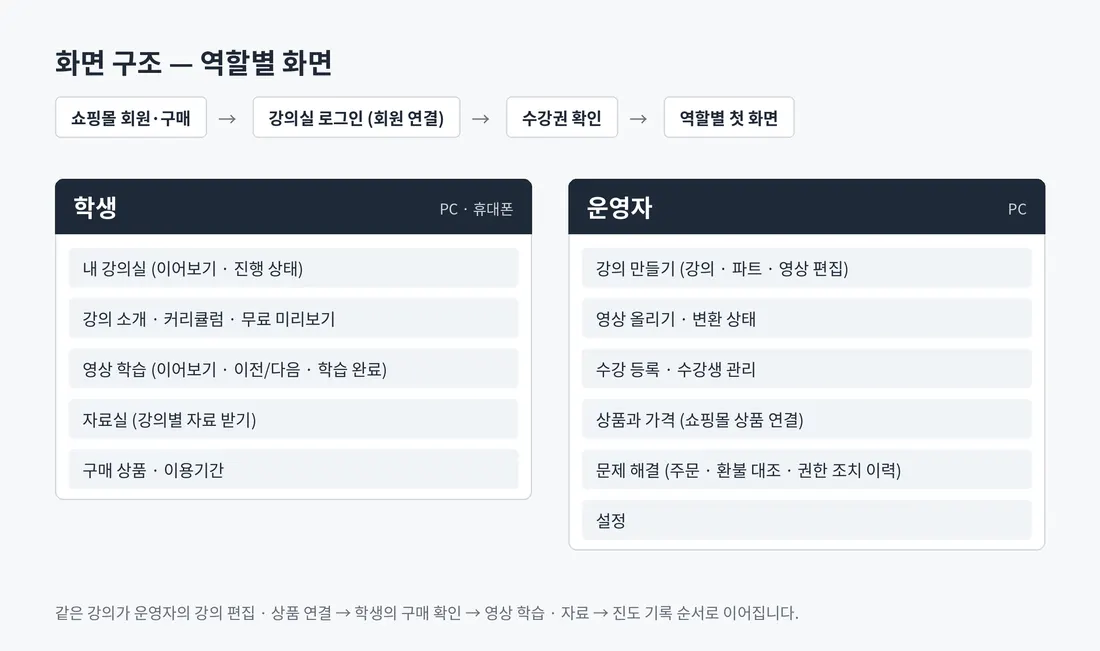
When a student logs in as an online store member, their access passes for purchased courses are checked, and then they enter My Classroom. Student screens work on both PC and mobile; operator screens are PC work screens. The same course moves from operator editing and product linking → student purchase check → video learning and materials → progress records.
4. Key Features
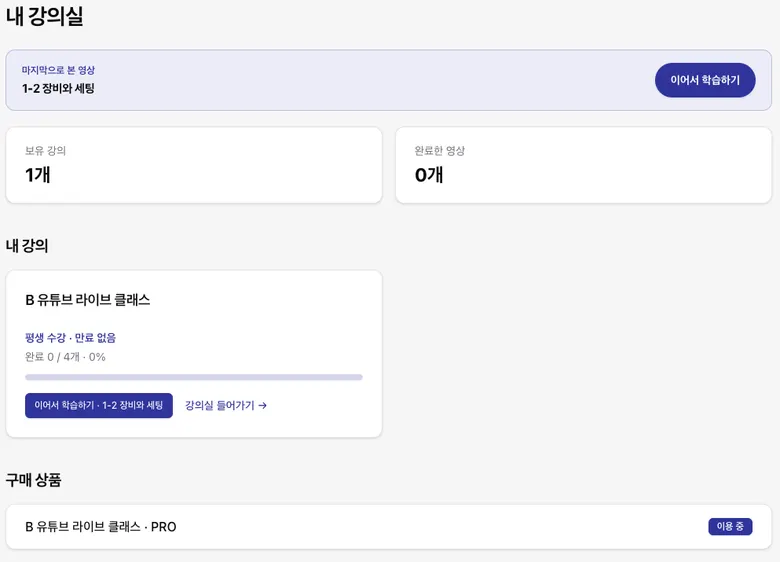
My Classroom — Resume and Progress
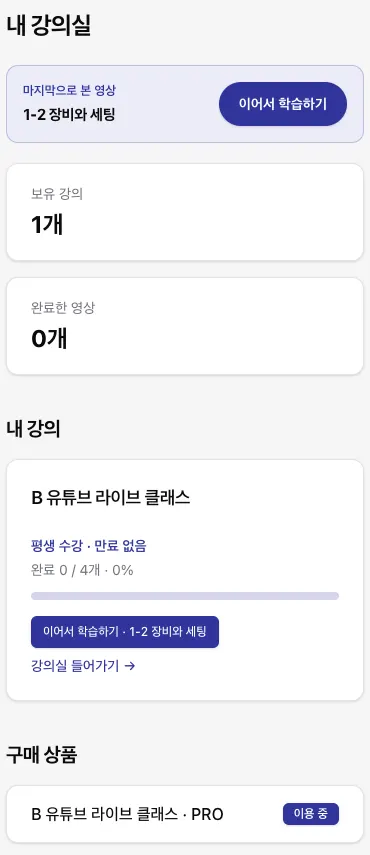
The last video watched and a "Continue learning" button sit at the top, along with the number of courses owned and videos completed. Each course shows its access period (e.g., lifetime access, no expiry), completed videos and a progress bar, with the purchased product and access status below.
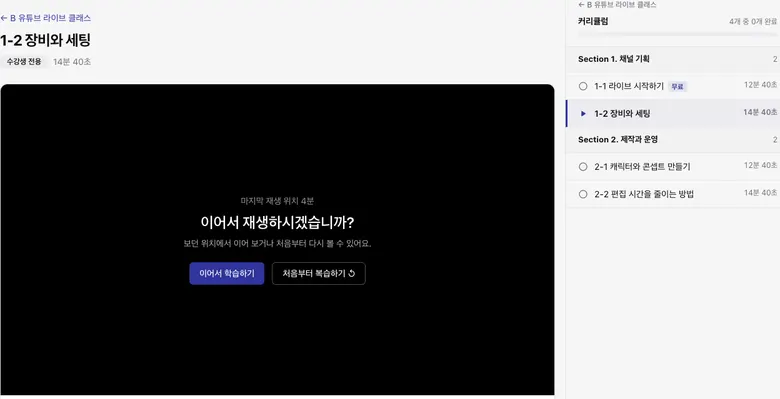
Video Learning — Resume and Curriculum
On return, it shows the last playback position and lets the student choose to resume or review from the start. The curriculum on the side shows each part and video's length, completion status and free preview videos, and lets the student jump straight to them.
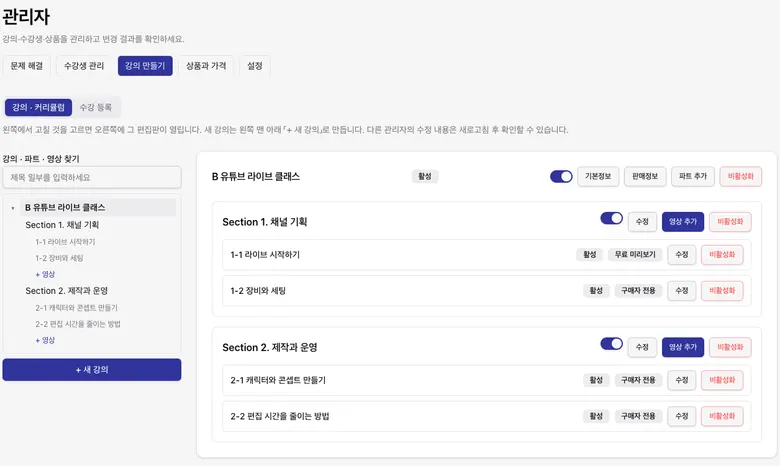
Operator Course Editing
Find and select a course, part or video on the left, and the editing panel opens on the right. For each video, set active or inactive and free preview or buyers only, and add parts, add videos and link sales information on one screen.
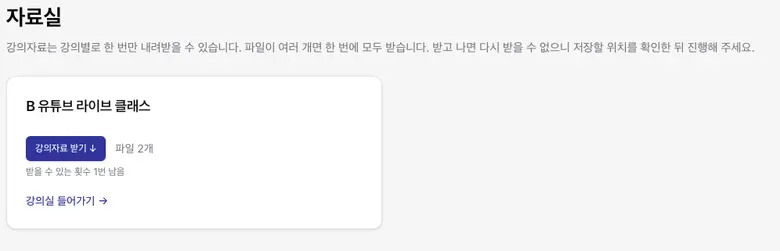
Resource Library — Materials per Course
Only learning materials for purchased courses are shown, and multiple files can be downloaded at once. Materials are served from private storage through links that open only briefly, and download request records and remaining counts are kept per member, course and material version.
- Video Learning on MobileOn mobile, students also choose resume or review from the start, and tap lesson complete, previous lesson or continue to next lesson. Watching 80% or more of a video marks it complete, and the next lesson can play automatically when it ends.
- Online Store Member Link and Access PassesLogging in as an online store member links to the classroom account, and access passes are created per purchase record based on order information. When the access period ends or a refund is made, access changes, and the basis for it is kept separately.
- Video Upload and Processing StatusThe operator uploads videos directly in the course editing screen. If an upload is interrupted, it can be resumed, and the video is attached to a course after its status confirms processing is finished.
- Order and Refund Reconciliation and Error AlertsStore orders and refunds are compared with classroom access to find mismatches, and the operator's access actions are kept on record. If an error occurs in operational tasks such as order linking, the operator is notified.
5. Build Notes
Show details
| Responsive | Student screens fit both PC and mobile. On mobile, the curriculum moves below the video and can be collapsed and expanded. Operator screens are PC work screens with a list on the left and an editing panel on the right. |
| Fonts | Uses the system's default sans-serif font, so there are no extra font downloads. |
| Images & video | Videos are uploaded to a dedicated video service with resumable upload (TUS), processed, then played back with HLS. Private materials are served through expiring file storage URLs. |
| Motion | Limited to the resume prompt and autoplay of the next lesson. Progress is recorded based on observed playback. |
| Accessibility | Buttons and status indicators use text too, not color alone. Students can turn autoplay off. |
| Technology | React · TypeScript · TanStack Start/Router/Query · Tailwind CSS · Radix UI. Login and data use Supabase (auth · PostgreSQL · file storage); access passes, progress and material records are managed with server functions (RPC) and row-level access rules, and input is validated with Zod. The store link uses Cafe24 OAuth 2.0 and its API (members, products, orders); video uses Bunny Stream · TUS · HLS · hls.js; deployment and scheduled jobs use Vercel; error alerts use Resend. |
6. QA
| Item | Check |
|---|---|
| Screens captured | My Classroom (PC, mobile) · Video learning (PC, mobile) · Operator course editing · Resource library |
| Personal names, contacts, addresses | 0 (each screen opened and checked one by one) |
| Channel, instructor or store names, logos, faces and thumbnails | 0 |
When orders are reflected depends on the store API's response and processing status. Progress is based on observed playback, not verified viewing, and one download is counted per download request, which is kept separate from whether the file was fully received.
The live service requires login, so no speed score based on a public URL was measured for this case.
7. Result
Privacy Policy