1. Overview
| Industry | A business that gathers order and sales files received separately each month and from each channel, then reports on them |
| Site goal | A work tool that replaces copy-pasting files and lining up columns with a single upload, and fixes the wrong cells after merging |
| Scope | 2 screens (work · saved work) · 4 steps (files · match columns · check and fix · totals and download) · 3 sample files (June, July, August; 110 rows) |
| Main flows | Upload several files → match columns → merge and check → fix red cells → totals by month and channel → download CSV / save work → reopen from saved work |
Uploaded files, column matches, fixed cells, cleanup rules, manually chosen column names and saved work are saved in the browser. They stay in place after a refresh or a return visit. Uploaded files are read only inside this browser and are never sent anywhere.
Connected at rollout: reading Excel (xlsx) files directly, server storage for shared team use, automatic merging on a schedule.
2. Challenges
1. Columns that mean the same thing have different names in each file.
2. Wrong rows only show up after merging.
Orders entered twice, blank cells, rows with a different date format, and amounts mixed with letters throw off the totals. Where the problem is must be visible right away.
3. Fixes need to carry over to next month.
Column names matched once and cells already fixed should be kept so next month's files merge the same way, quickly.
3. Structure
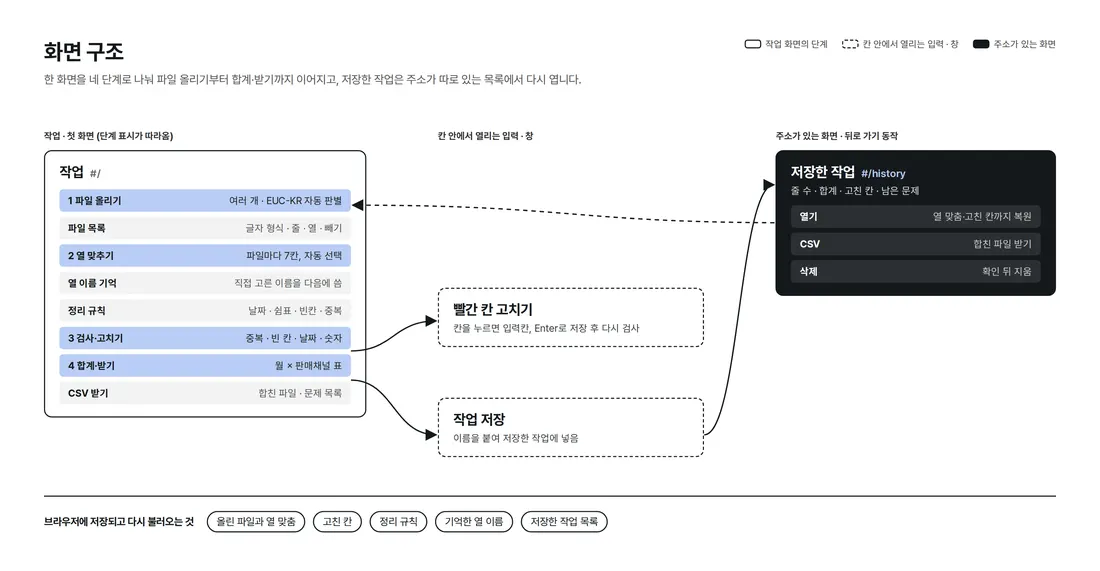
Work proceeds in four steps in one place on the first screen, and the step indicator on the left tracks how far you are. Saved work has its own address, so it stays in place on back navigation and refresh.
4. Key Features
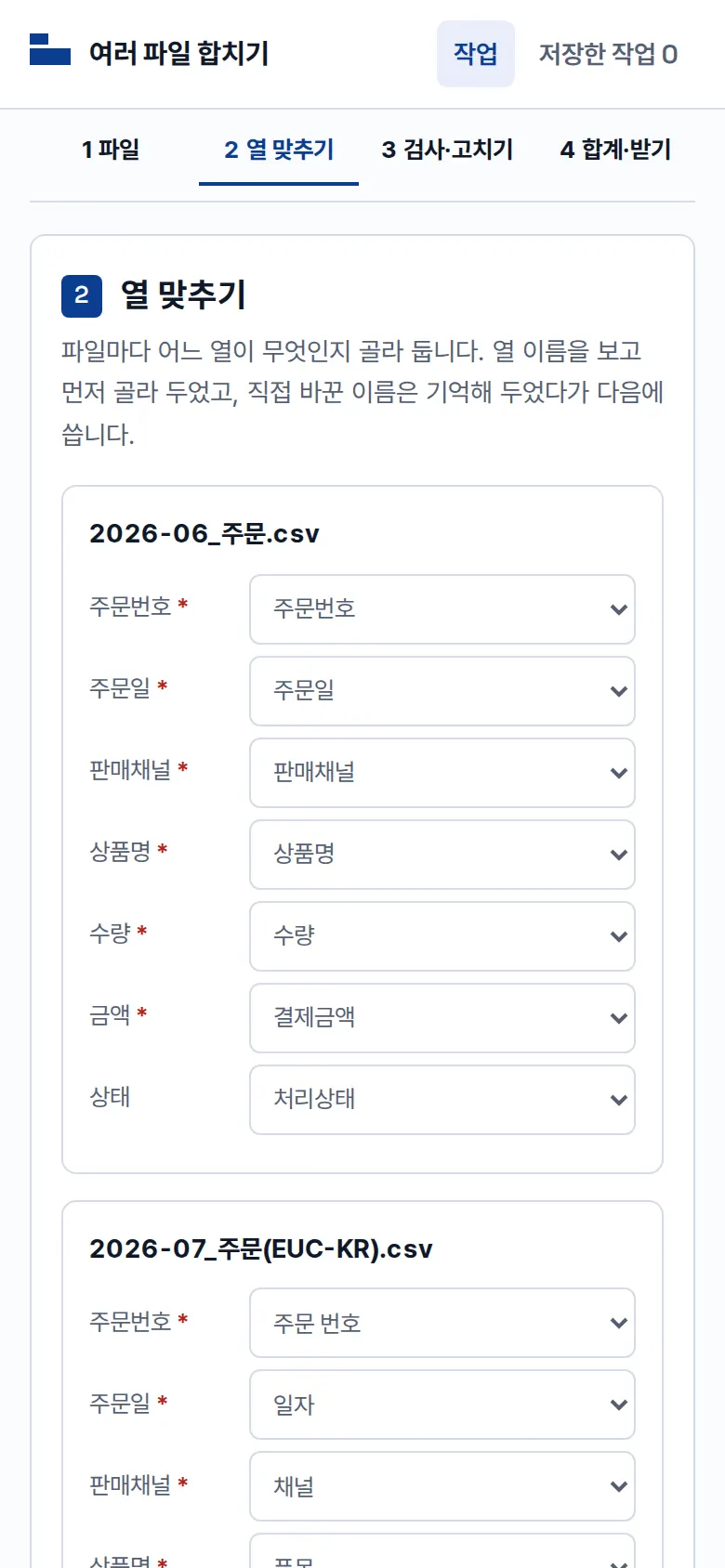
Match columns
For each file, 7 fields (order number, order date, sales channel, product name, quantity, amount, status) are preselected from the column names. Column names you choose yourself are remembered and applied automatically to the next files you upload.
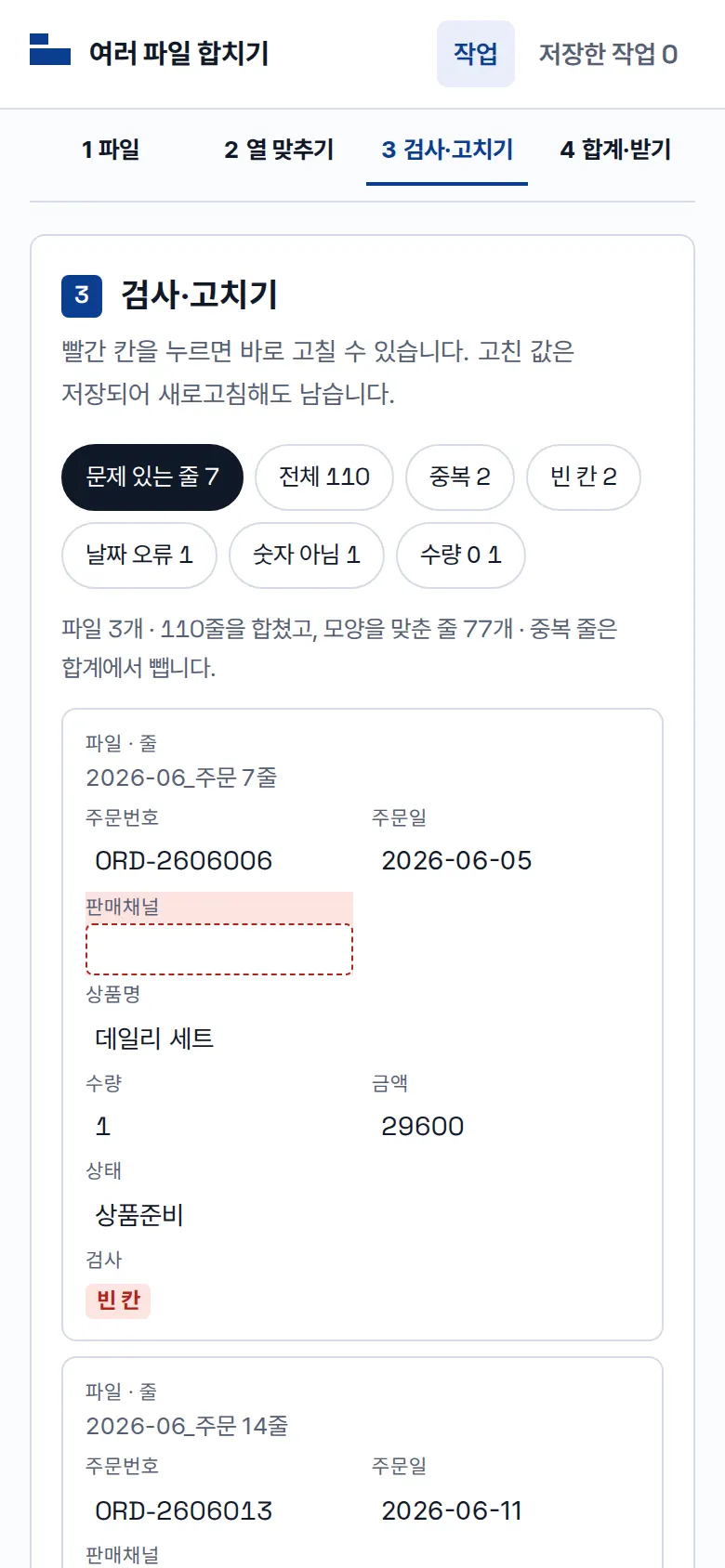
Merge and check
Every merged row is checked for duplicate · blank · date error · not a number · zero quantity. Buttons per problem type show only those rows, along with which file and which row they came from.
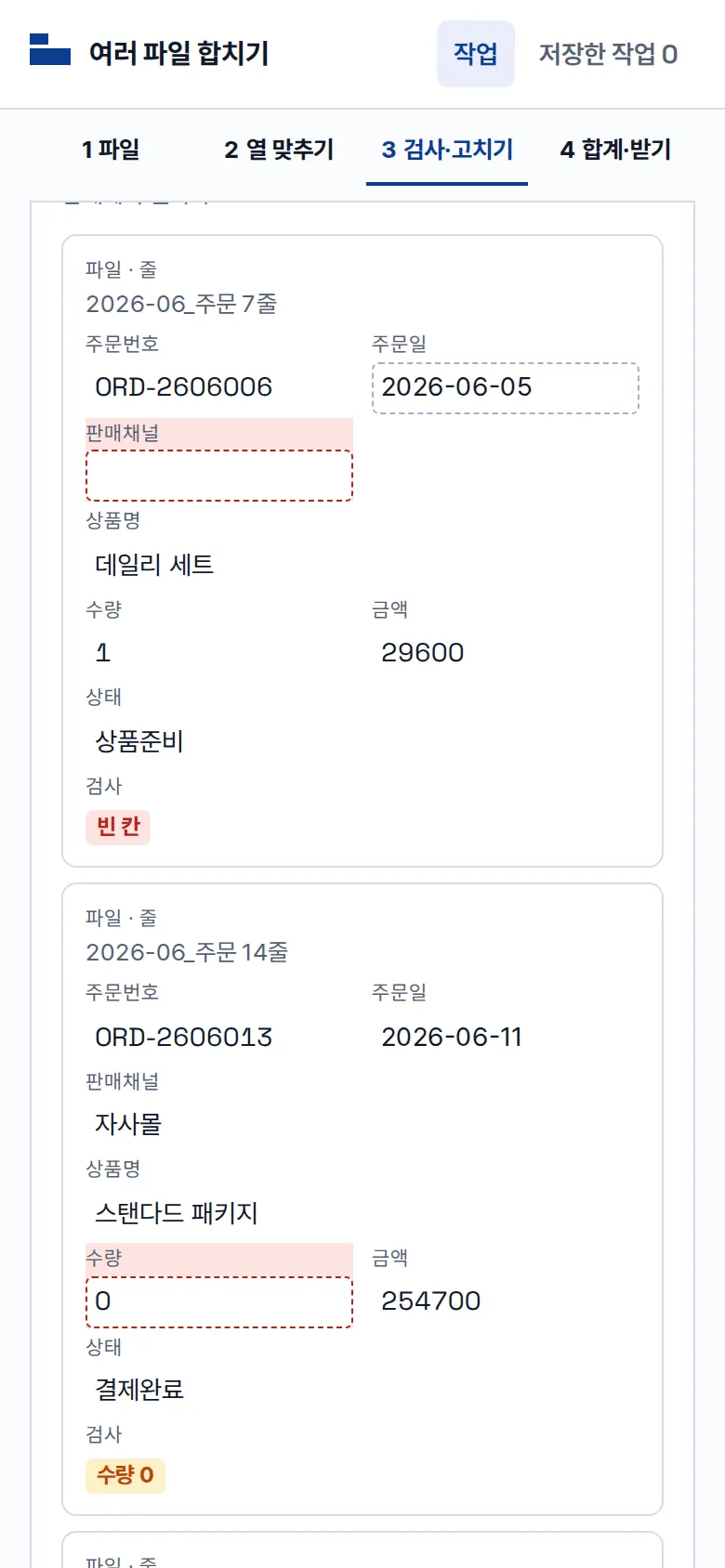
Fix red cells in place
Tapping a red cell opens an input; saving with Enter runs the check again. Fixed cells are saved and remain after a refresh.
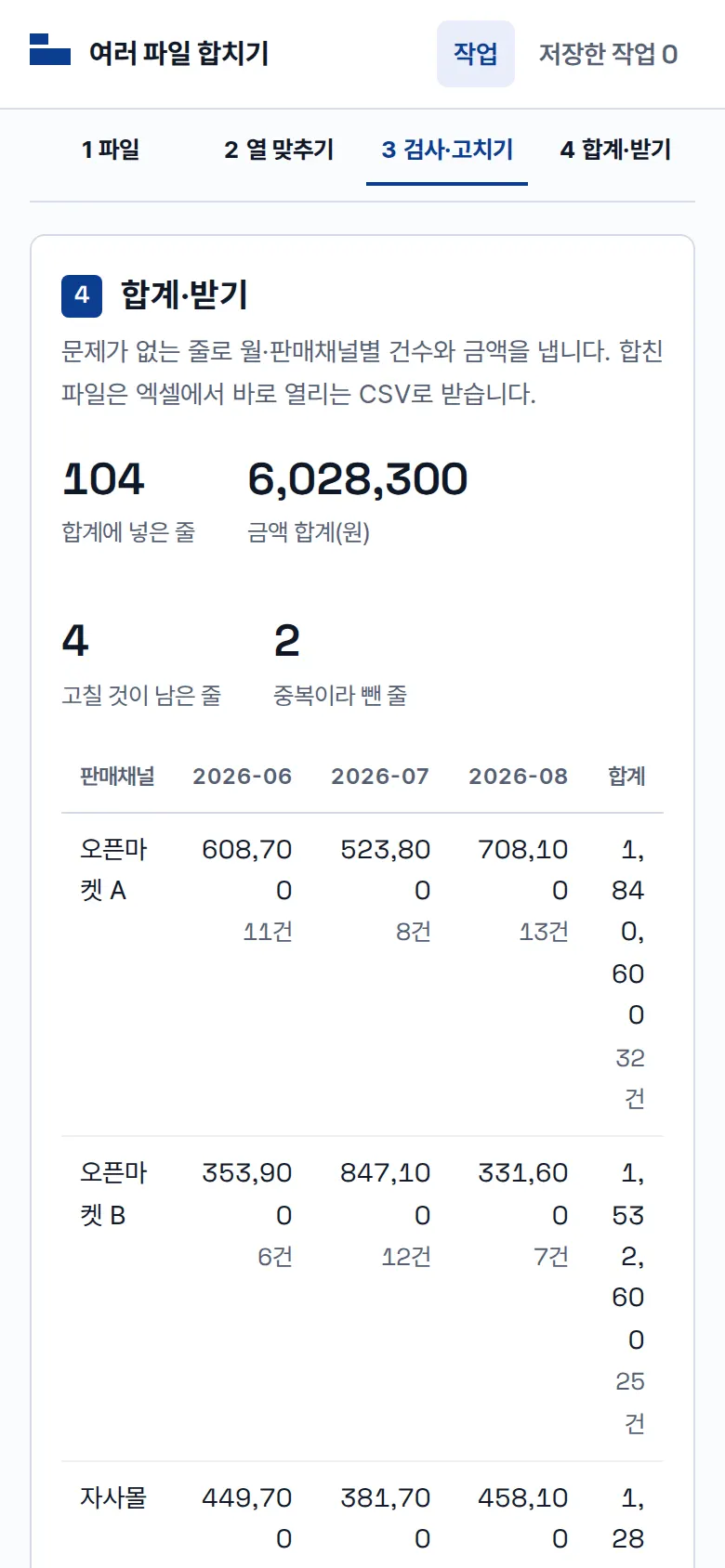
Totals by month and sales channel
Only rows without problems are used to build a month × sales channel table of counts and amounts. The merged file and the problem list download as CSVs that open directly in Excel.
- Saved workColumn matches, fixed cells and cleanup rules are saved under a name, and can be reopened from the list or downloaded as CSV.
5. Build Notes
Show details
| Responsive | Layout changes at 960 and 640px. On PC, file cards → column matching run left to right, with the merged table and totals below. Below 960px, they stack in one column. Below 640px, the merged table becomes one card per row. The step indicator sticks to the top and follows along. |
| Fonts | Rounded sans-serif — Gowun Dodum for body and headings, rounded Nunito for numbers (all free, open fonts). Bundled with the site, so no external requests. The Korean font first loads only the characters used on this screen (33KB); Korean characters that appear only in a user's uploaded file are fetched when needed from a separate 2,350-character file (130KB). Number font 32KB. |
| Images | Built without photos. Icons are drawn in SVG and stay sharp on any screen. |
| Motion | CSS transitions only, no libraries. Kept to notices sliding up from the bottom; with reduced motion turned on in the device, transitions stop. |
| Accessibility | Every input has a name, and main buttons are 44px tall for easy tapping. Status is shown with both color and text, and notices are marked for screen readers. Buttons and inputs also work by keyboard. Accessibility score 100 on mobile · 100 on PC. |
| Tech | HTML, CSS, JavaScript (no external libraries). 55KB for screens and scripts combined. Files are opened with the browser's file reader, and EUC-KR files saved from Excel are detected and re-read in the right encoding. Results are saved to and read from browser storage (localStorage), and downloaded CSVs open directly in Excel. Screens use separate addresses (#/…), so back navigation works. |
6. QA
These are results from running the tool on PC 1440 and mobile 390 screens and tapping through in the order a real user would. We also checked that saved data is still found after a refresh. (2026-09-23)
| Item | PC 1440 | Mobile 390 |
|---|---|---|
| Screen errors | 0 | 0 |
| Broken files | 0 | 0 |
| Horizontal overflow · clipped text | 0 | 0 |
| Function tests | 15 / 15 passed | 15 / 15 passed |
The 15 function tests: load 3 sample files (including EUC-KR) · match different headers to the same column · merge and check · fix a red cell in place → check again · fixed cells kept after refresh · turn cleanup rules off and on (keep first duplicate only) · totals by month and sales channel · download merged file as CSV · download problem list as CSV · save work → saved work · view saved work after refresh · reopen work → back navigation · remember manually changed column names · upload several of your own files (including EUC-KR) · delete saved work
Speed and quality scores (out of 100; mobile measured three times on a slow connection, median shown)
| Performance | Accessibility | Best Practices | SEO | |
|---|---|---|---|---|
| Mobile | 99 | 100 | 100 | 100 |
| PC | 100 | 100 | 100 | 100 |
Mobile: First Contentful Paint 1.4s · Largest Contentful Paint 1.7s · Layout shift 0 · Blocking time 0ms PC: First Contentful Paint 0.4s · Largest Contentful Paint 0.4s · Layout shift 0 · Blocking time 0ms
7. Result
Try it live ↗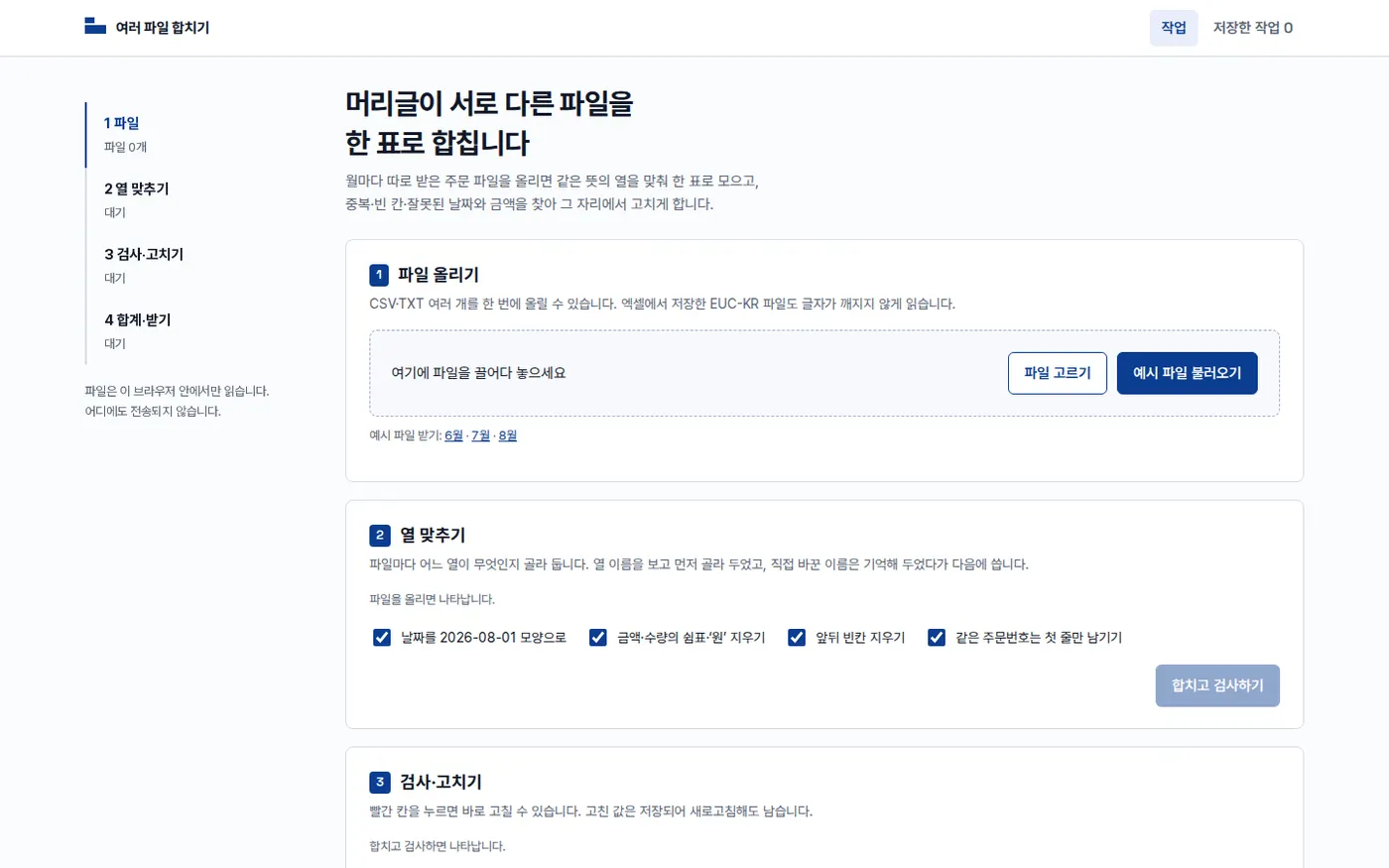

Privacy Policy