1. Overview
| Industry | The parts warehouse of a plant that assembles small electronics (3 suppliers, 14 items) |
| Purpose | See on one screen what is short and what is on the way, and keep quantities right from purchase order to receiving and issuing |
| Scope | 4 pages · 8 screens · 14 items (3 categories) · 3 suppliers |
| Main flow | Check shortages → Draft purchase orders (per supplier) → Save / Confirm received quantity → Update stock · Partial receipt / Record issues / Stock count file → Apply differences / Stock movement log → Download CSV |
Item stock, safety stock, purchase orders and received quantities, and receiving, issuing and adjustment records are saved in the browser. They stay after a refresh or a return visit.
Connected at rollout: server storage and login for shared use, barcode scanner connection, emailing purchase orders to suppliers, and accounting software integration. At rollout these are connected to the company's environment.
2. Challenges
1. "Stock is low" is not the same as "we need to order."
Even below safety stock, there is no need to order again if an earlier order is already on the way. Only items that are truly short, counting incoming quantities, should be picked, so duplicate orders stop.
2. Purchase orders and actual receipts drift apart.
Suppliers ship in parts, and the warehouse should record only what arrived. Each purchase order should show the remaining quantity and partial receipt status.
3. The books and the shelves slowly stop matching.
Checking month-end count results line by line takes a long time. Only the items that differ should be shown, and applied adjustments should be kept on record.
3. Structure
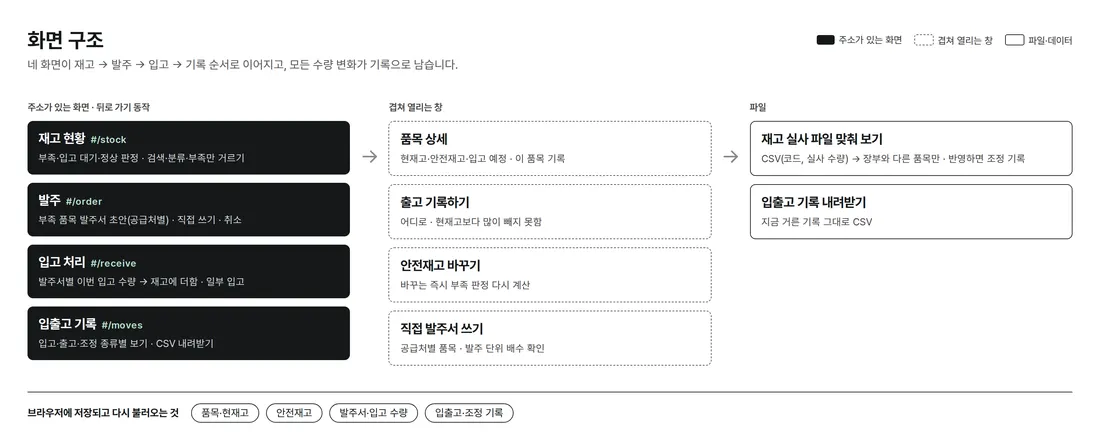
Four screens, inventory → purchase orders → receiving → stock movement log, are linked by the top menu. Each has its own URL, so the back button works. Clicking an item opens its detail on the side, where issuing and safety stock changes are done in place.
4. Key Features
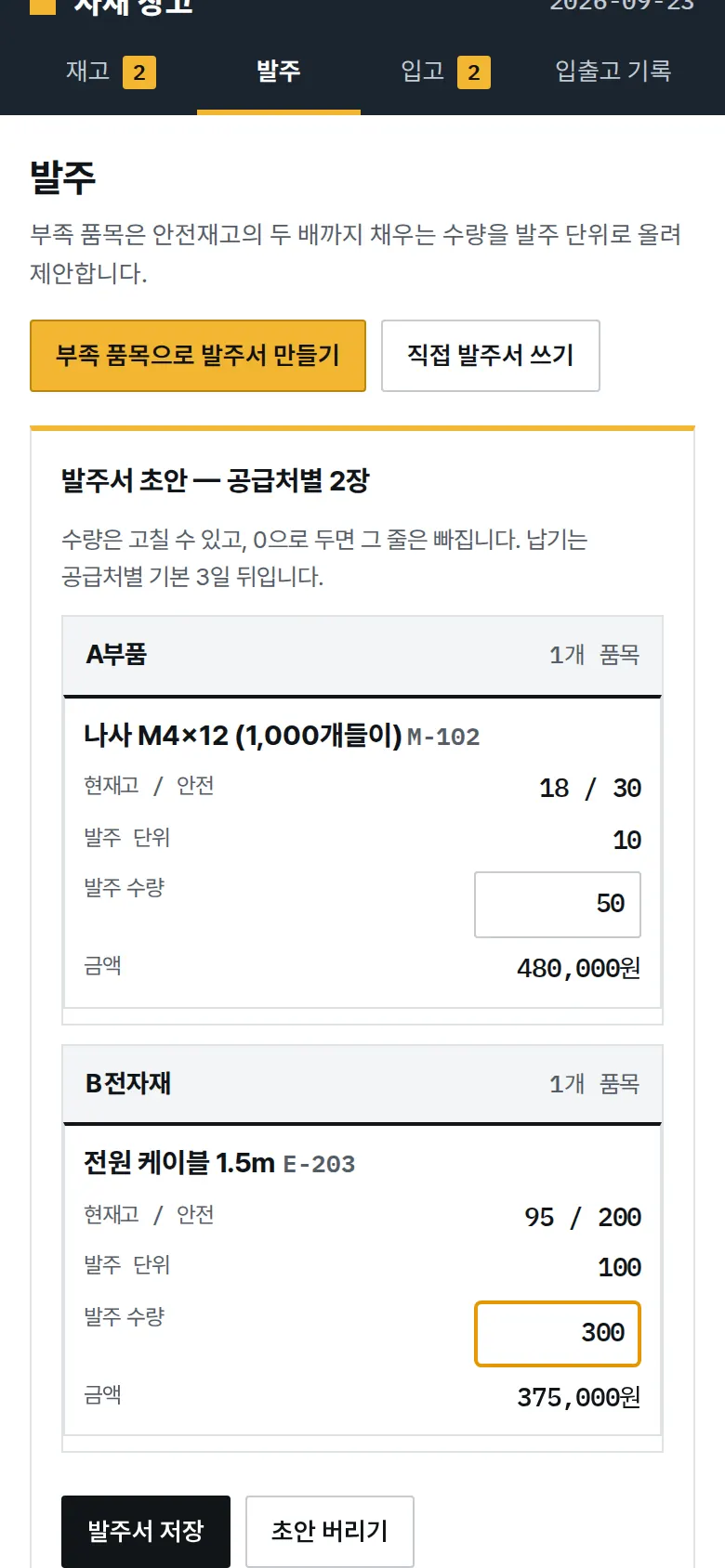
Shortage Check and Purchase Order Drafts
Only items where current stock plus incoming quantity is still below safety stock are marked "short." One button creates draft purchase orders per supplier. The suggested quantity fills stock up to twice the safety stock, rounded up to the order unit. Editing a quantity updates the amount right away, and quantities that are not a multiple of the order unit cannot be saved.
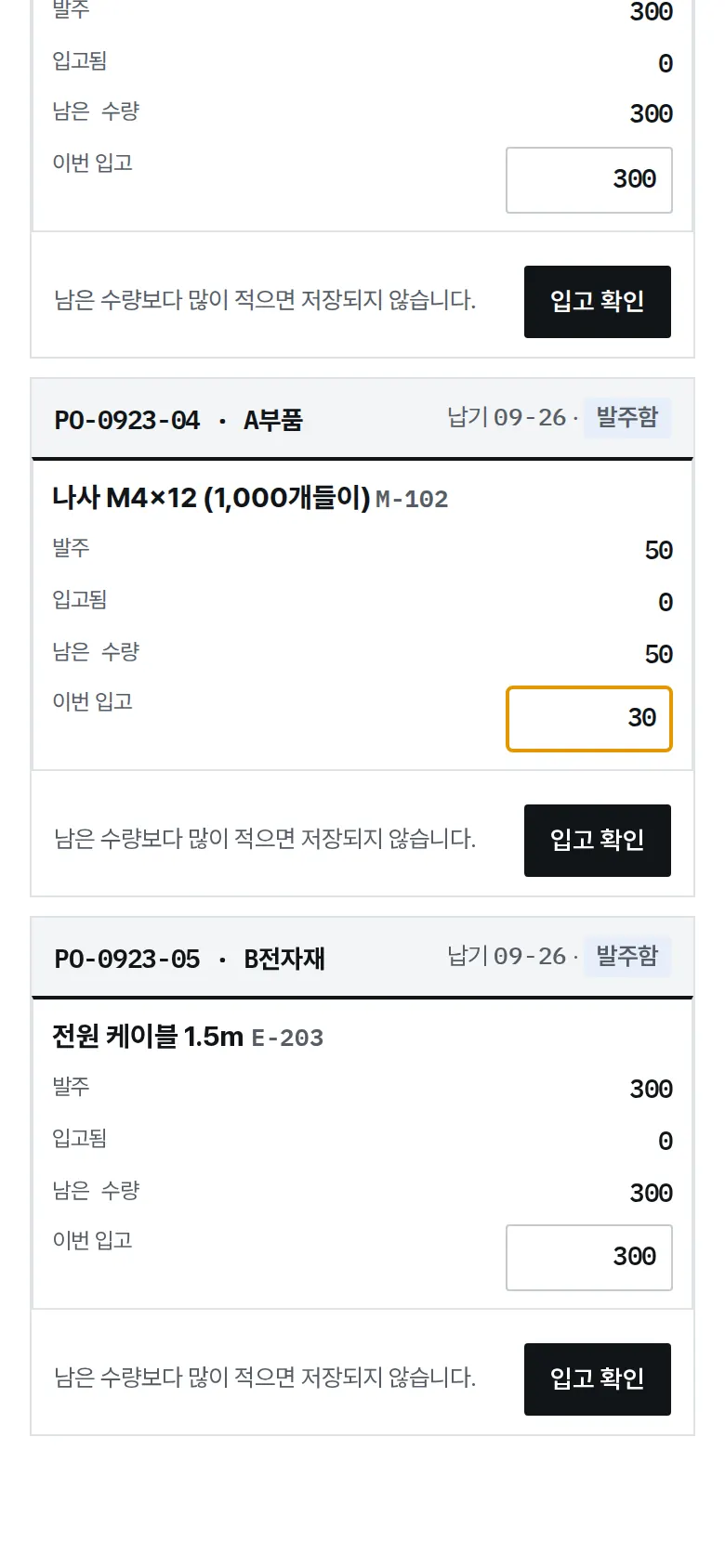
Receiving — Partial Receipts
Each purchase order awaiting receipt shows the remaining quantity per item. Enter the quantity that arrived and confirm. It is added to stock and a receiving record is kept. If not everything has arrived, the order stays as "partially received." Entering more than the remaining quantity cannot be saved.
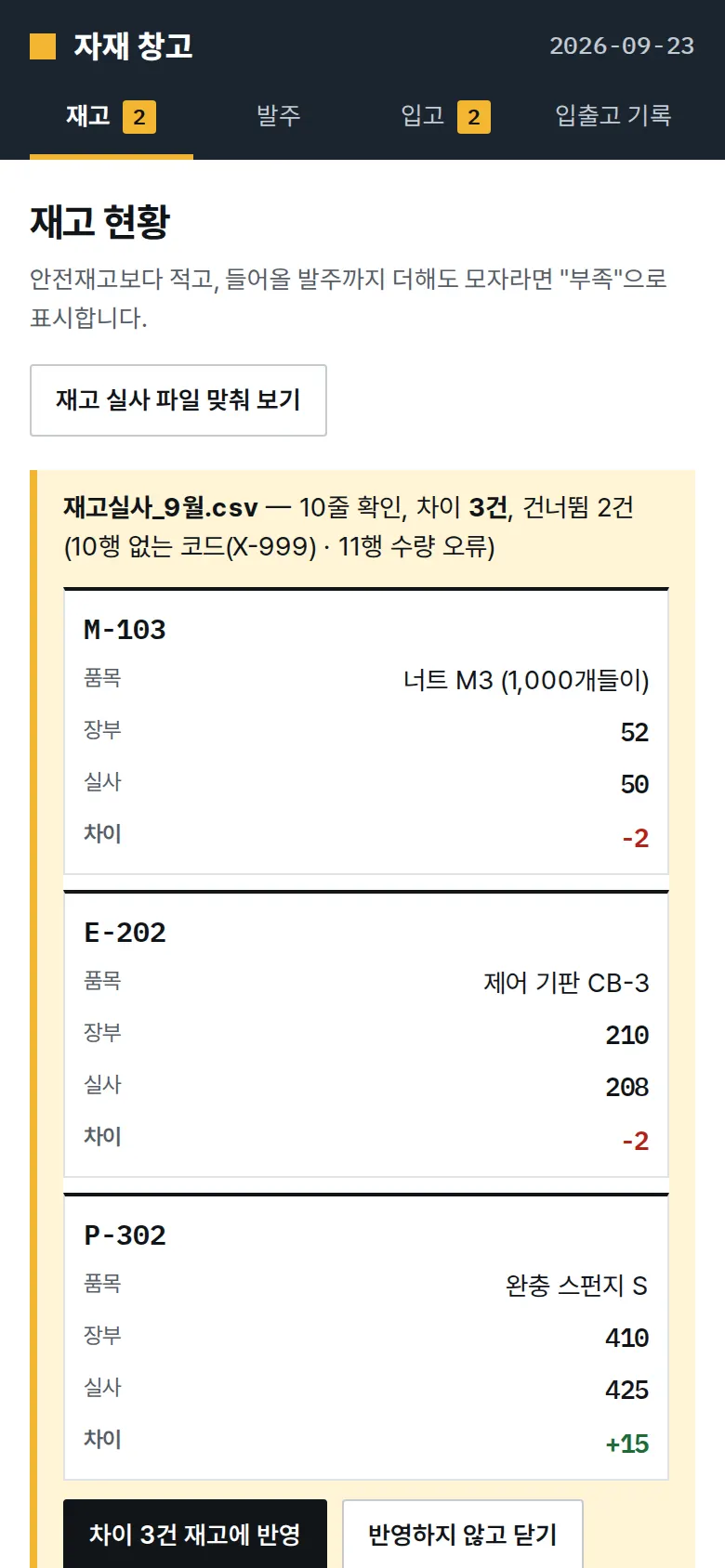
Stock Count File Reconciliation
Upload the warehouse count as a CSV (code, counted quantity), and only items that differ from the books are shown with the difference. Unknown codes and non-numeric quantities are skipped, with the row number noted. Applying the results records an "adjustment" for each difference.
Inventory — Search, Category, Short Only
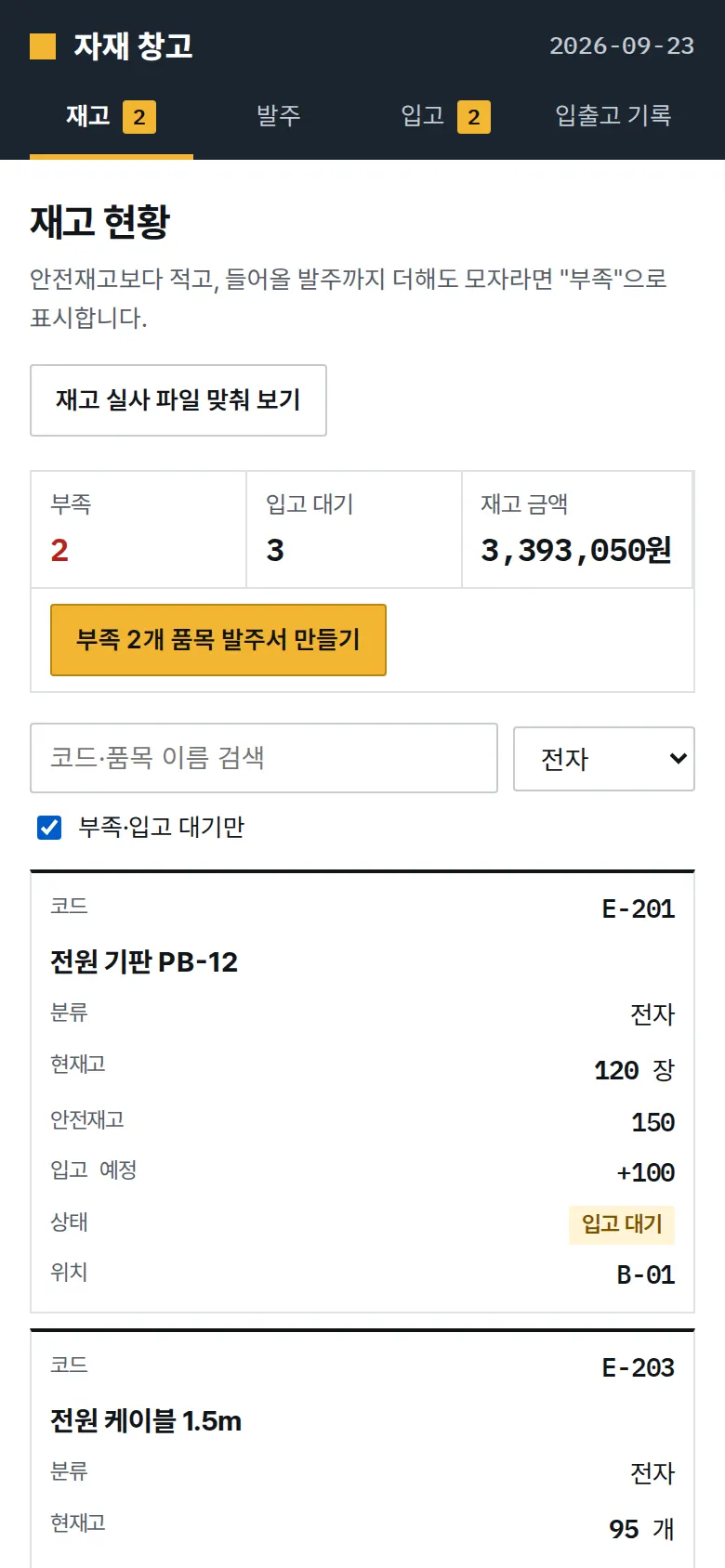
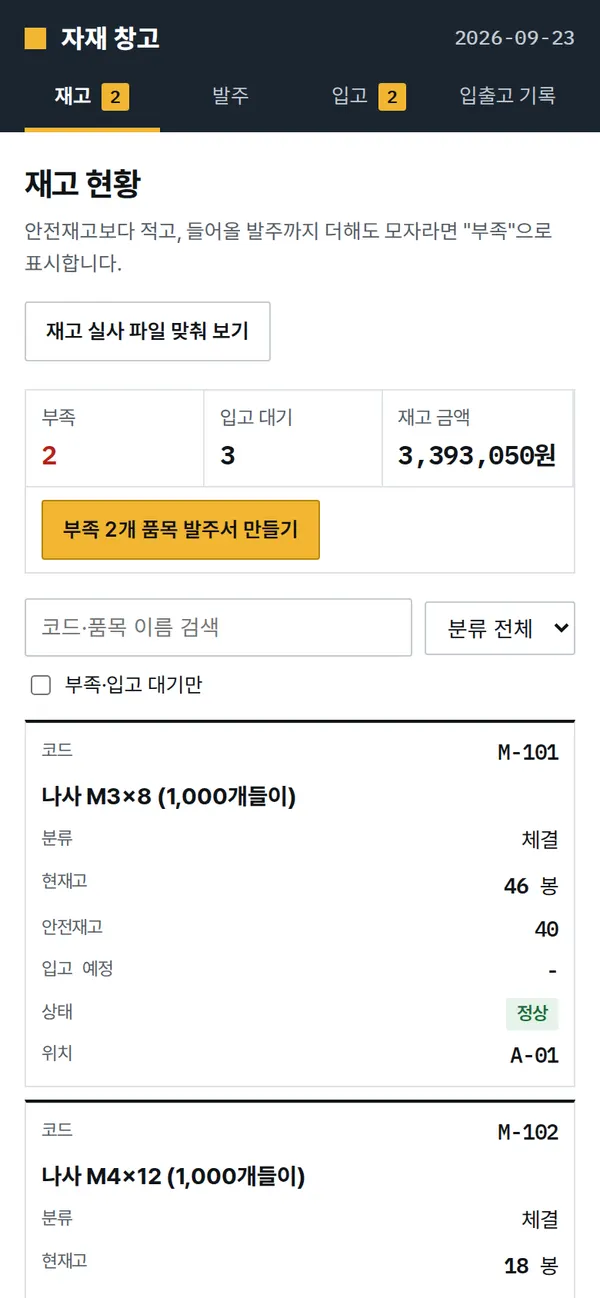
Search by code or item name, and filter by fasteners, electronics or packaging, or "short / awaiting receipt only." Each item shows current stock, safety stock, incoming, status and warehouse location in one row, which turns into a card on mobile.
- Item Detail — Recording IssuesClicking an item opens current stock, safety stock, incoming quantity and this item's records. Enter an issue quantity and destination (assembly line, shipping and packing, defect disposal) to deduct it from stock. Trying to issue more than current stock is blocked.
- Changing Safety StockChanging safety stock in the item detail recalculates the shortage check and the shortage count in the menu right away.
- Purchase Order List — Manual Orders and CancellationEach purchase order shows supplier, items, amount, due date and status (ordered, partially received, fully received, canceled), and overdue orders are marked. You can write a purchase order manually by choosing a supplier, and cancel orders that have not been received yet.
- Stock Movement Log and CSV DownloadReceipts, issues and adjustments stack by date and can be filtered by type. The filtered log downloads as a CSV exactly as shown.
5. Build Notes
Show details
| Responsive | Layout changes at 980px and 760px. On PC there is a top menu styled like a drawing title block and single-row tables; below 760px the menu becomes four tiles and tables turn into a bordered block per item. Quantity fields bring up the number keypad on mobile. |
| Fonts | Codes, quantities and Latin text in Share Tech Mono, Korean in Orbit (both free, open fonts). Digits line up vertically, which makes quantities easy to compare. Hosted with the site, so no external requests, and subset to only the characters used: Korean font 29KB · number font 8KB. |
| Images | No photos, only a blueprint grid (two layers of CSS lines) and white-line tables. The dimension line under headings and the tick marks at both ends of stock bars are drawn in CSS. Total transfer is about 74KB including fonts. |
| Motion | Built with CSS transitions, no libraries. The item detail slides in from the side, and transitions stop when the device's reduce-motion setting is on. |
| Accessibility | Every quantity field has a label that includes the item name, and errors are shown with both a border and a sentence. Table rows can be selected with the keyboard and opened with Enter, and Esc closes the panel. Accessibility score 100. |
| Technology | HTML, CSS and JavaScript (no external libraries). Data is saved to and read back from browser storage (localStorage). Every change in quantity goes through one place, so stock is updated only via receiving, issuing or adjustment records. CSV reading and writing are built in-house. |
6. QA
Results from opening the site on PC 1440 and mobile 390 screens and clicking through in the order a real user would. We also checked that saved data is still there after a refresh. (2026-09-23) The same tests were also run on the Safari engine (WebKit) at PC and mobile sizes: 0 screen errors, all functions passed.
| Item | PC 1440 | Mobile 390 |
|---|---|---|
| Screen errors | 0 | 0 |
| Broken files | 0 | 0 |
| Horizontal overflow / clipped text | 0 | 0 |
| Function tests | 11 / 11 passed | 11 / 11 passed |
The 11 function tests: short and awaiting-receipt display · search, category and short-only filters · stock count file (3 differences applied, 2 bad rows skipped) · purchase order drafts for short items (saved after order unit check) · writing and canceling a manual purchase order · receiving (over-entry blocked, partial receipt) · issuing an item (over current stock blocked) · safety stock change and shortage check · stock, orders and records kept after refresh · log filter and CSV download · back button
Speed & quality scores (out of 100; mobile measured three times on a slow connection)
| Performance | Accessibility | Best Practices | SEO | |
|---|---|---|---|---|
| Mobile | 100 | 100 | 100 | 100 |
| PC | 100 | 100 | 100 | 100 |
Mobile: First Contentful Paint 1.0s · Largest Contentful Paint 1.2s · Layout shift 0.002 · Blocking time 0–70ms PC: First Contentful Paint 0.3s · Largest Contentful Paint 0.3s · Layout shift 0.008 · Blocking time 0ms
7. Result
Try it live ↗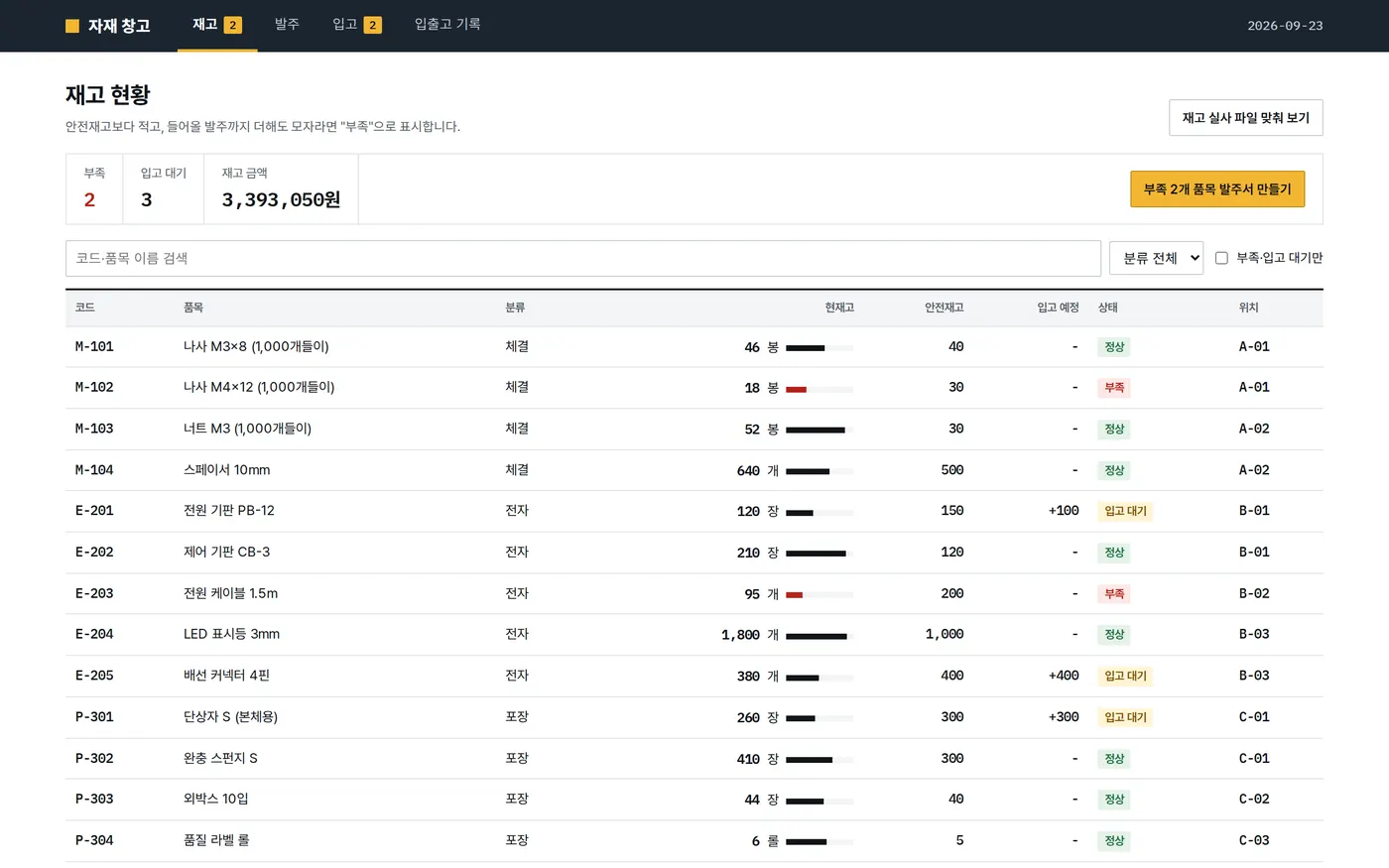
Privacy Policy