1. Overview
| Industry | Freight brokerage and operations connecting shippers with carriers and drivers |
| Purpose | Bring consultations, dispatch, trips, and settlement — scattered across phone calls, messengers, and Excel — into role-based screens, so the next person can pick up the same shipment |
| Scope | 5 roles (shipper · carrier · dispatcher · driver · admin) · login and sign-up approval · general, refrigerated, and container freight · PC work screens and a mobile screen for drivers |
| Main flow | Consultation request → carrier assigned / shipment registered → load posted → driver accepts → loading · in transit · unloading (containers through return) → proof → settlement request → approval |
The screens and data you see depend on the logged-in account's role and organization. Status changes run only through fixed server procedures, so records stay consistent even if someone skips a step or two people change the same shipment at once.
The screens on this page show de-identified test data; they are not real shipment, contact, or payment records. The live service needs login and a server to work, so there is no hands-on demo.
Connected at rollout: actual payments (settlement covers request, approval, and status tracking), a shipper document box, assigned dispatch, automatic dispatch, and vehicle location tracking.
2. Challenges
1. Consultations and dispatch are scattered across phone calls and group chats.
Shipper inquiries come by phone, dispatch happens in messenger group chats, and results are copied into Excel. Seeing who has which shipment on one screen is what prevents missed and duplicated jobs.
2. Each role needs to see different things.
Admins need today's blocked work, dispatchers need shipments with no driver yet, and drivers need only the trips to run now, on their phones. One screen shared by everyone suits no one.
3. Proof and settlement lag even after the trip ends.
When proof of unloading arrives late, the settlement request is late too. Trip stages and proof/settlement status are kept separate, and the next item to handle rises to the top.
3. Structure
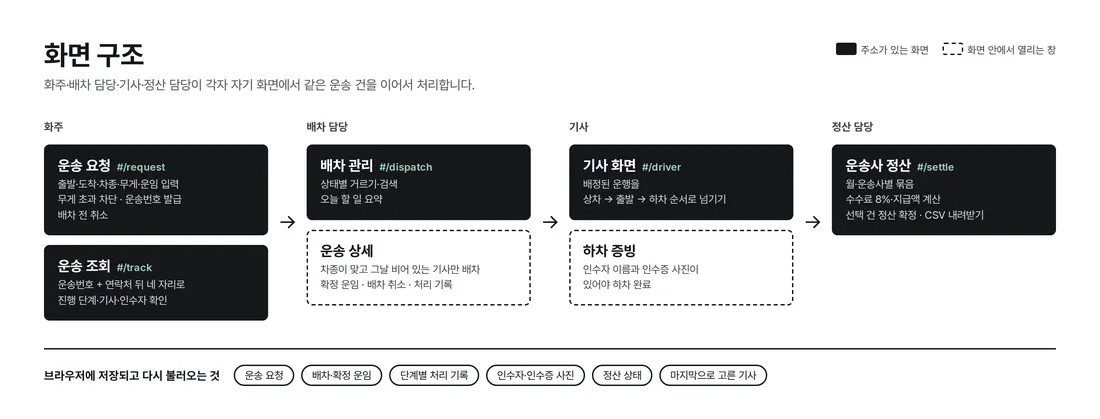
After login, only accounts that passed sign-up approval enter the first screen for their role. Shippers, carriers, dispatchers, and admins use PC work screens; drivers use a mobile screen. A single shipment moves across role screens in order: consultation → registration and posting → dispatch → trip and proof → settlement.
4. Key Features
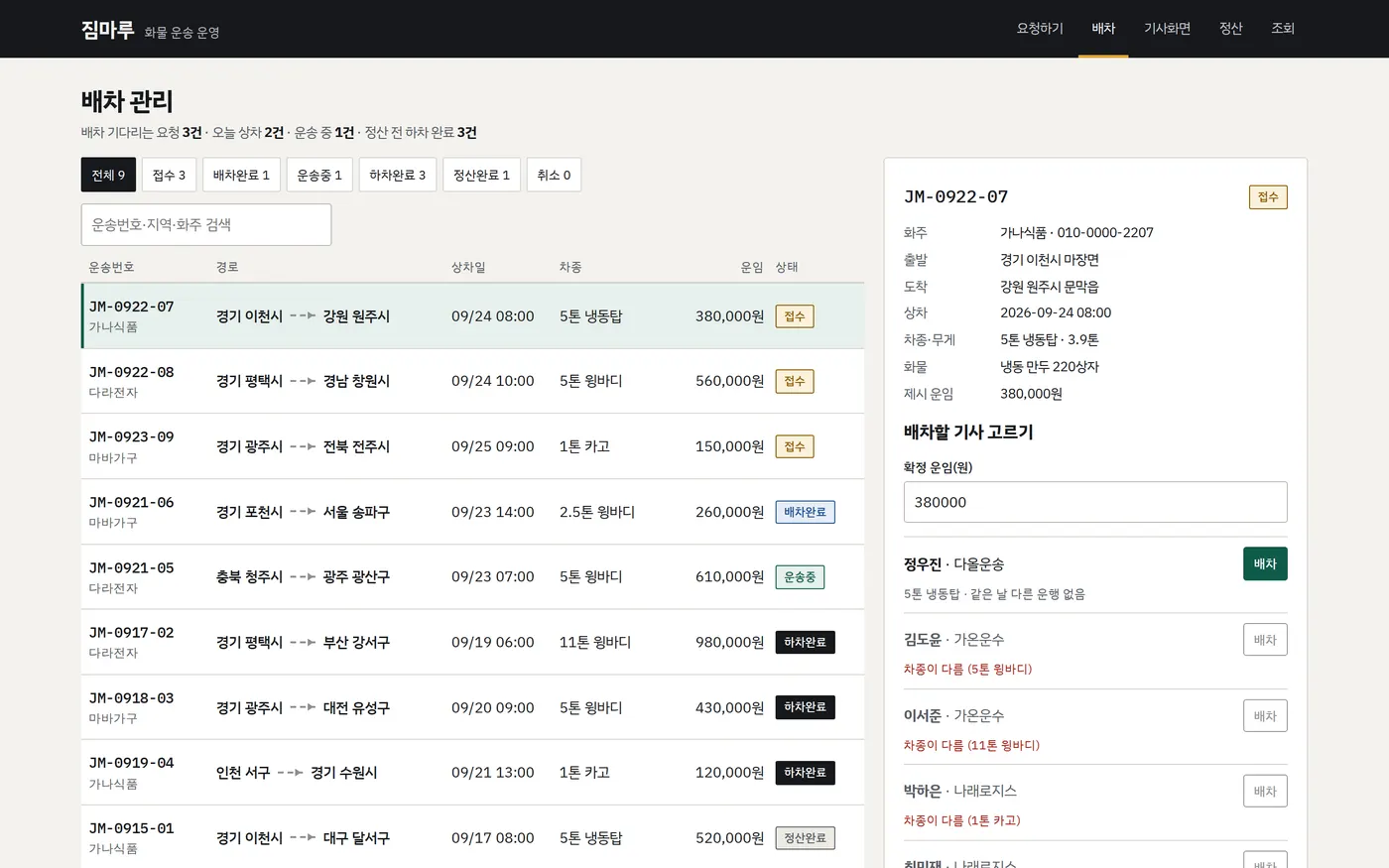
Admin Operations Home — Today's Tasks
Counts for undispatched, in transit, awaiting settlement, completed today, and signed up today are gathered at the top, with the work to handle now grouped by type below. Urgent containers, shipments undispatched for over 6 hours, settlement requests, consultation requests, and sign-up approvals each appear with a review button.
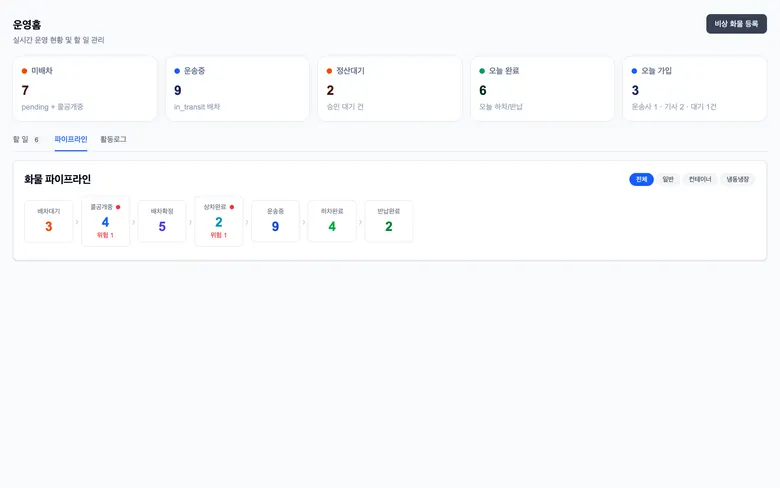
Freight Flow by Stage
Shows the count at each stage, from awaiting dispatch through container returned, and separately marks at-risk counts for stages that have taken too long. It can be split into general, container, and refrigerated/frozen.
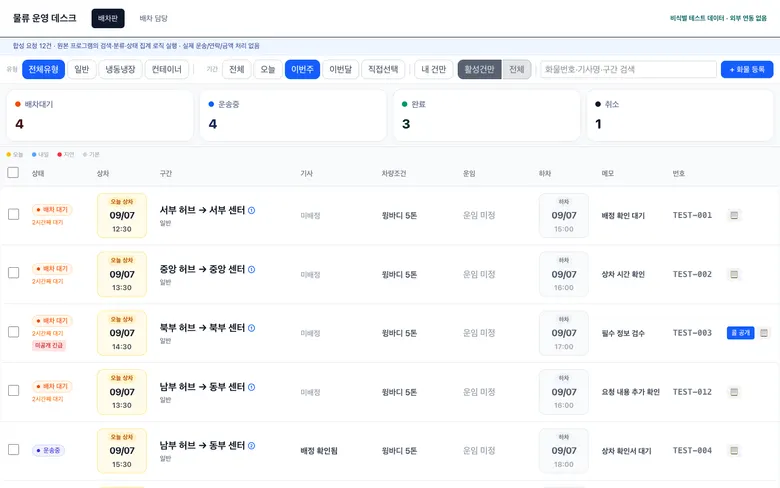
Dispatch Board
Dispatchers filter by freight type, date range, my shipments only, and in-progress shipments, and search by freight number, driver, or route. Loading today or tomorrow and delayed shipments are color-coded, with time waiting for dispatch attached. Shipments with no assigned driver are posted as open loads for drivers to accept directly.
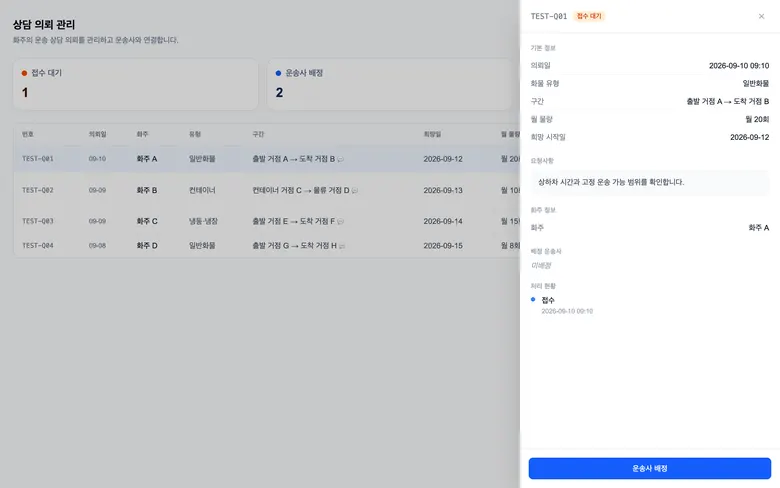
Consultation Request → Carrier Assignment
Admins open a shipper's transport consultation from the list, check the route, monthly volume, preferred date, and requests, and assign a carrier. The received, assigned, consulting, and contracted stages are kept as a handling record.
- Carrier Consultation HandlingCarriers see only the requests assigned to them. They open a request, check the terms, and move the status forward after contacting the shipper; the same record shows on the admin screen.
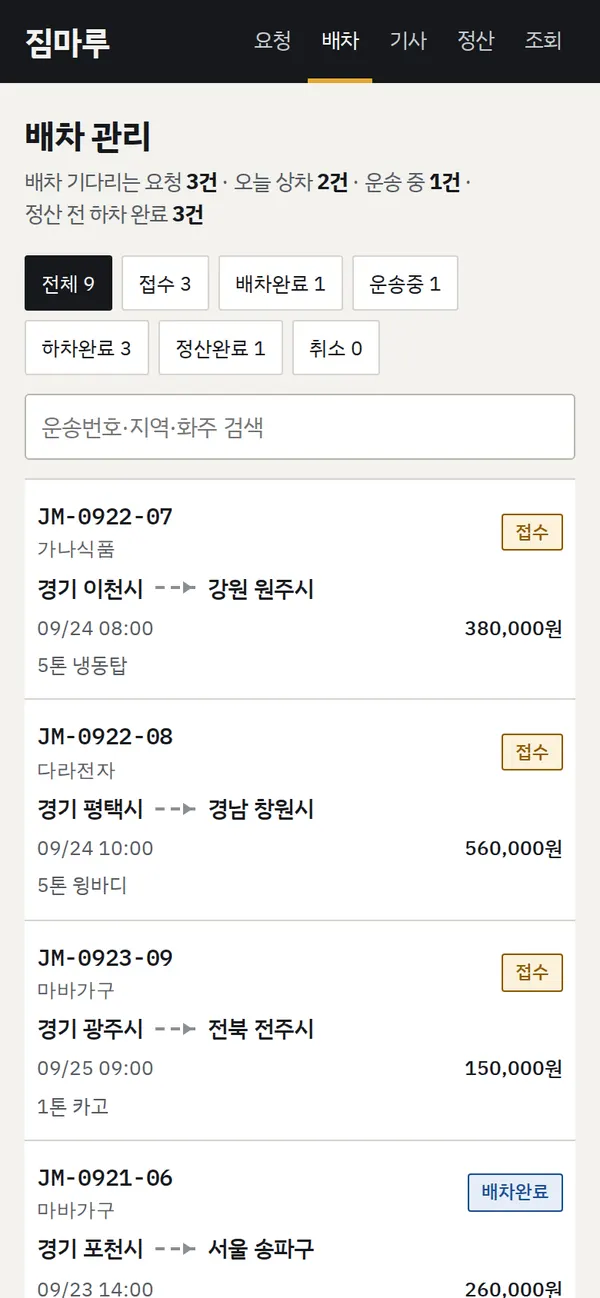
- Driver Mobile ScreenOn their phones, drivers see the number of open loads, trips in progress, and recent completions at a glance. They accept loads or propose a rate, then carry the trip through loading, in transit, and unloading (including pickup and return for containers) and upload proof. The bottom menu switches between Home, Find Loads, My Trips, My Info, and Help.
- Shipper Transport Consultation RequestEven without freight know-how, a shipper submits a request by leaving only the type, origin, destination, preferred loading date, expected monthly volume, and contact details. It won't proceed with required fields empty, and submitted requests appear as tasks on the admin operations home.
5. Build Notes
Show details
| Responsive | Admins, carriers, dispatchers, and shippers use PC work screens with wide tables and detail panels that open from the side. The driver screen is built for mobile with a bottom menu bar, and can be added to the phone's home screen to open like an app. |
| Fonts | Uses the system's default sans-serif font, so there are no extra font downloads. Shipment and freight numbers use a monospaced font to keep columns aligned. |
| Images | Screen elements are drawn with icons and CSS. Trip proof photos uploaded by drivers go to server file storage and are shown through a temporary address that stays open for only 1 hour each time they are viewed. |
| Motion | Only a transition for detail panels opening from the side. Screens reload the latest data on a per-role cycle (drivers and dispatch 5 seconds; admins, carriers, and shippers 10 seconds; analytics 30 seconds), and also when you return to the tab. |
| Accessibility | Status uses both color and text, never color alone. Every input has a label and a required marker. |
| Tech | Next.js · React · TypeScript · Tailwind CSS. Login and data use Supabase (auth · PostgreSQL · file storage); status changes happen only through server functions (RPC), and row-level access rules separate roles and organizations. Includes phone and email verification, Recharts operations charts, SheetJS Excel handling, and Sentry error logging. |
6. QA
The screens were rendered and captured from the real system's screen components with de-identified test data only. They were not connected to the production server or real data. (Admin and carrier screens recaptured 2026-09-23; dispatch board, driver, and shipper screens captured 2026-09-07)
| Item | PC 1440 |
|---|---|
| Screen errors | 0 |
| Outbound requests | 0 (captured with all requests other than screen files blocked) |
| Horizontal overflow | 0 |
| Screens captured | Operations home · flow by stage · consultation request list and detail · carrier consultation list and detail |
The live service requires login, so no public-URL speed score was measured for this case.
7. Result
Privacy Policy