1. Overview
| Industry | Store staff training at a bakery and café franchise head office (new staff and store managers) |
| Purpose | Gather hygiene, opening and customer service training that each store passed on by word of mouth into one place, keep a record of who has learned what, and let staff download the forms used in stores right away |
| Scope | 10 screens · 4 courses (2 required · 2 optional) · 12 lessons · 12 check questions · 6 resource files |
| Main flow | Browse → Sign up (store code) → Read lessons → Check questions → Certificate / Filter library → Download / My learning / Store manager — store completion status → CSV |
Members, lessons read, completion numbers, downloaded resources and login state are saved in the browser. They stay after a refresh or a return visit.
Connected at rollout: server storage for using one account across devices, video lessons, a head office admin screen (adding and editing courses), and email and text notifications. At rollout these are connected to the company's environment.
2. Challenges
1. New staff training differs from store to store.
When the manager is busy, training gets skipped, and no one knows who has covered what. Everyone should read the same content in the same order, with a reading record kept for each person.
2. Reading it is not the same as knowing it.
"I saw it" does not prevent hygiene incidents. A course should be completed only after passing short check questions, and a wrong answer should show why right away.
3. Store forms are scattered.
When checklists and temperature logs circulate as messenger photos, old versions stay in use. Staff should find and download the latest file in one place, with a record of who downloaded it.
3. Structure
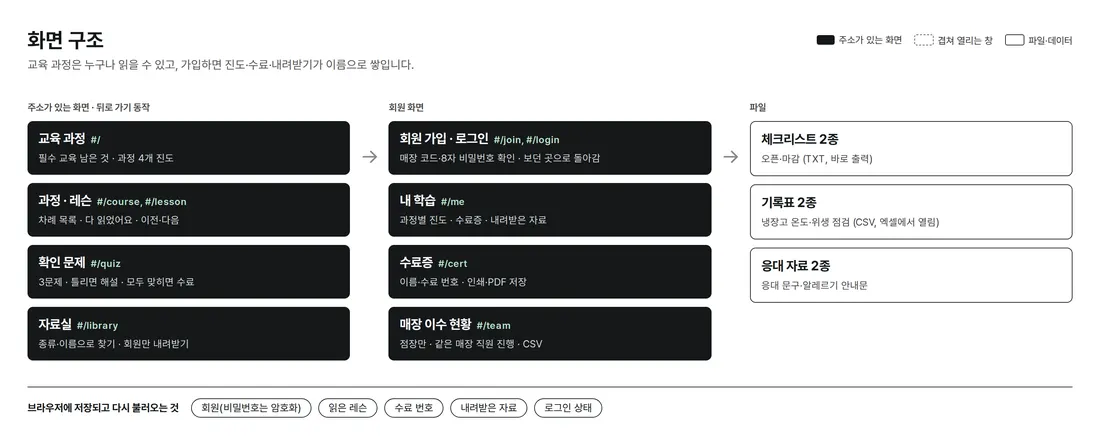
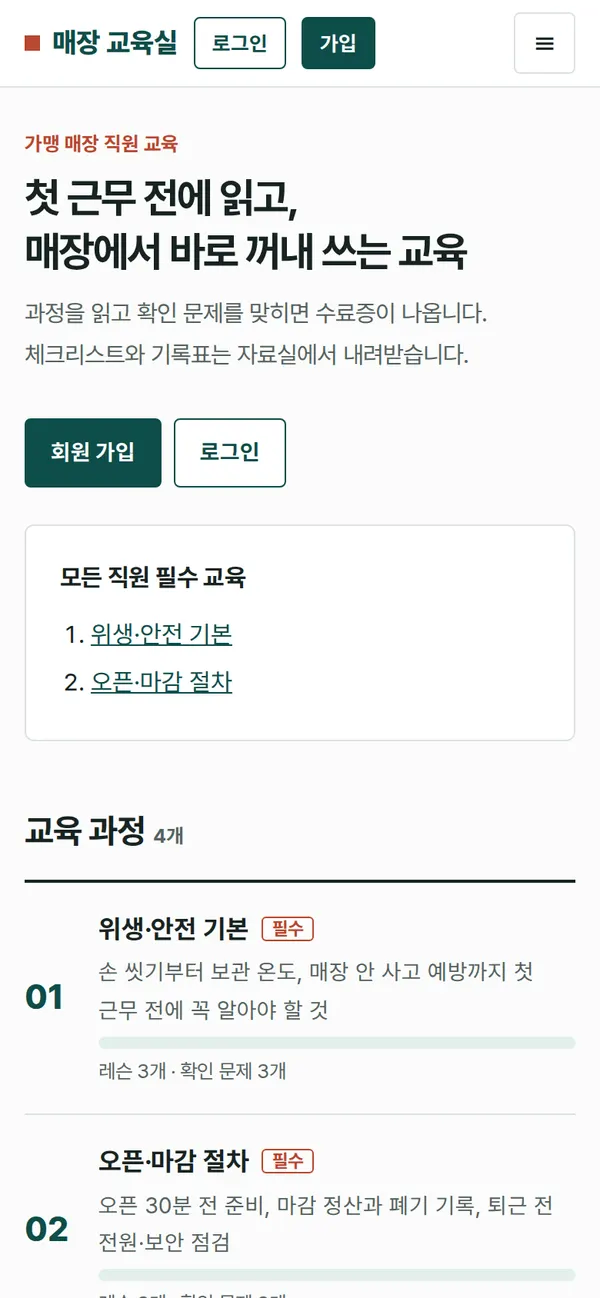
Anyone can browse courses, lessons, check questions and the library. After signing up, progress, completions and downloads are recorded under the member's name. Each screen has its own URL (#/lesson/A/2 etc.), so back and refresh keep you in place.
4. Key Features
Reading Lessons and Saving Progress
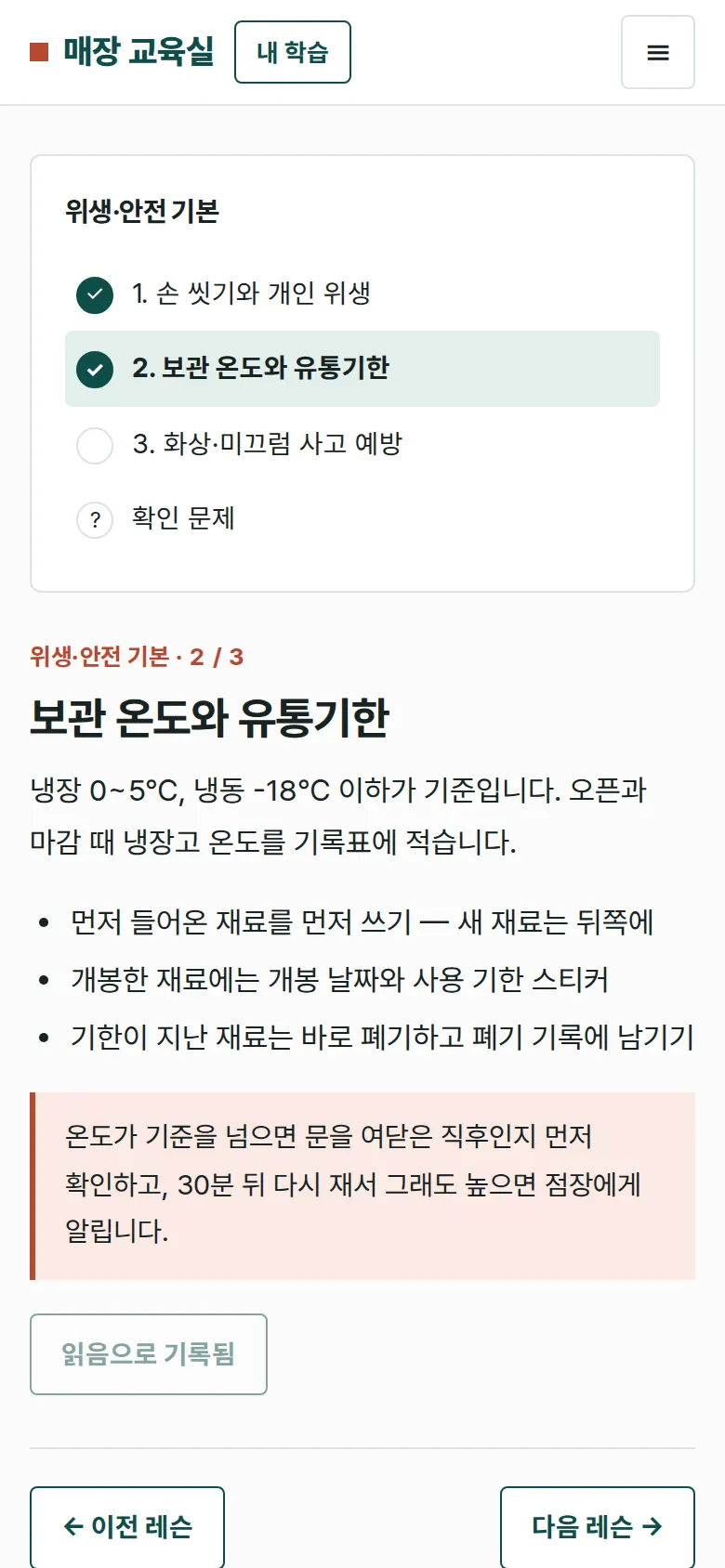
The lesson list sits to the left of the course, and lessons already read are checked. Clicking "Done reading" saves progress, and next time "Continue reading" opens where you stopped.
Check Questions — Explanations for Wrong Answers, Completion When All Are Right
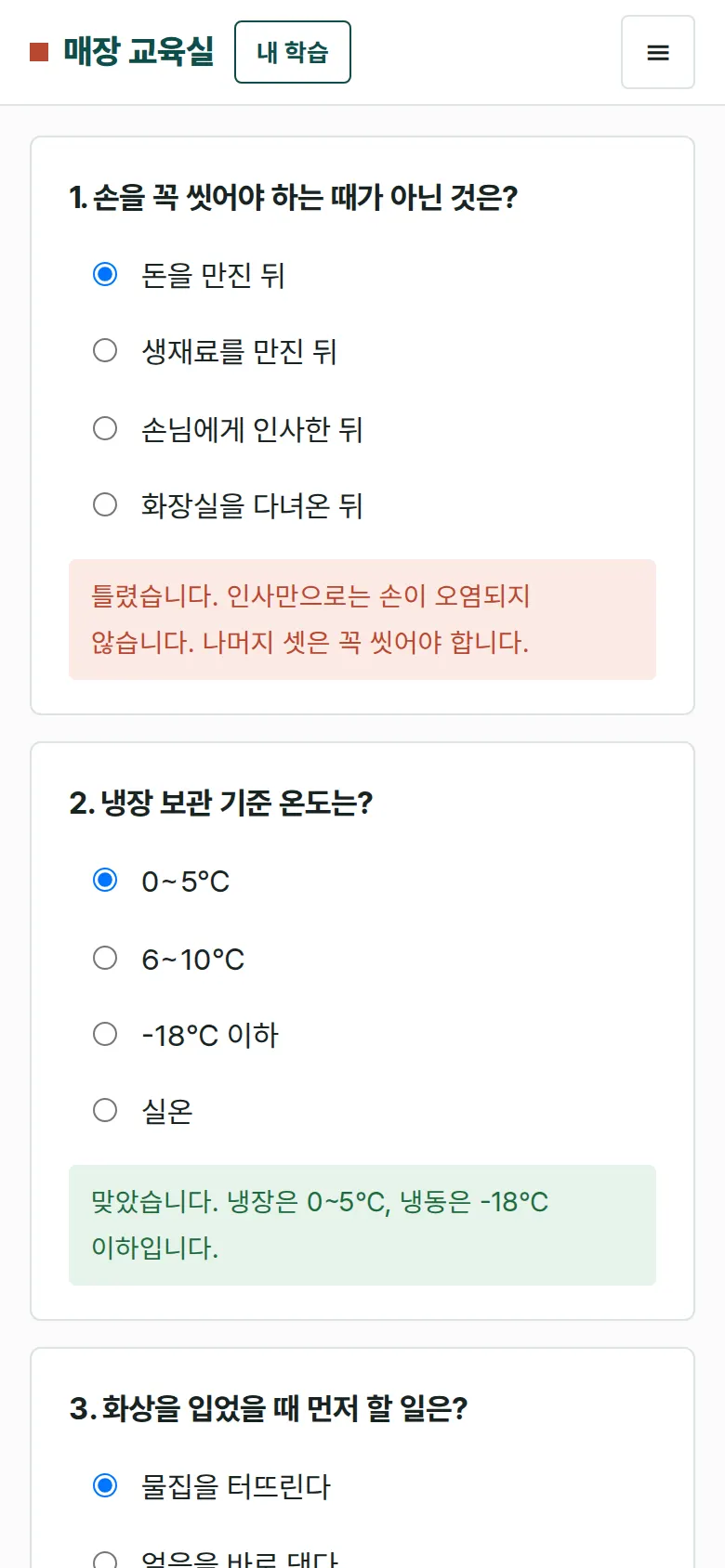
Questions open only after all lessons are read. Wrong answers come with an explanation, and answering all three correctly issues a completion number (C-course-sequence).
Certificate
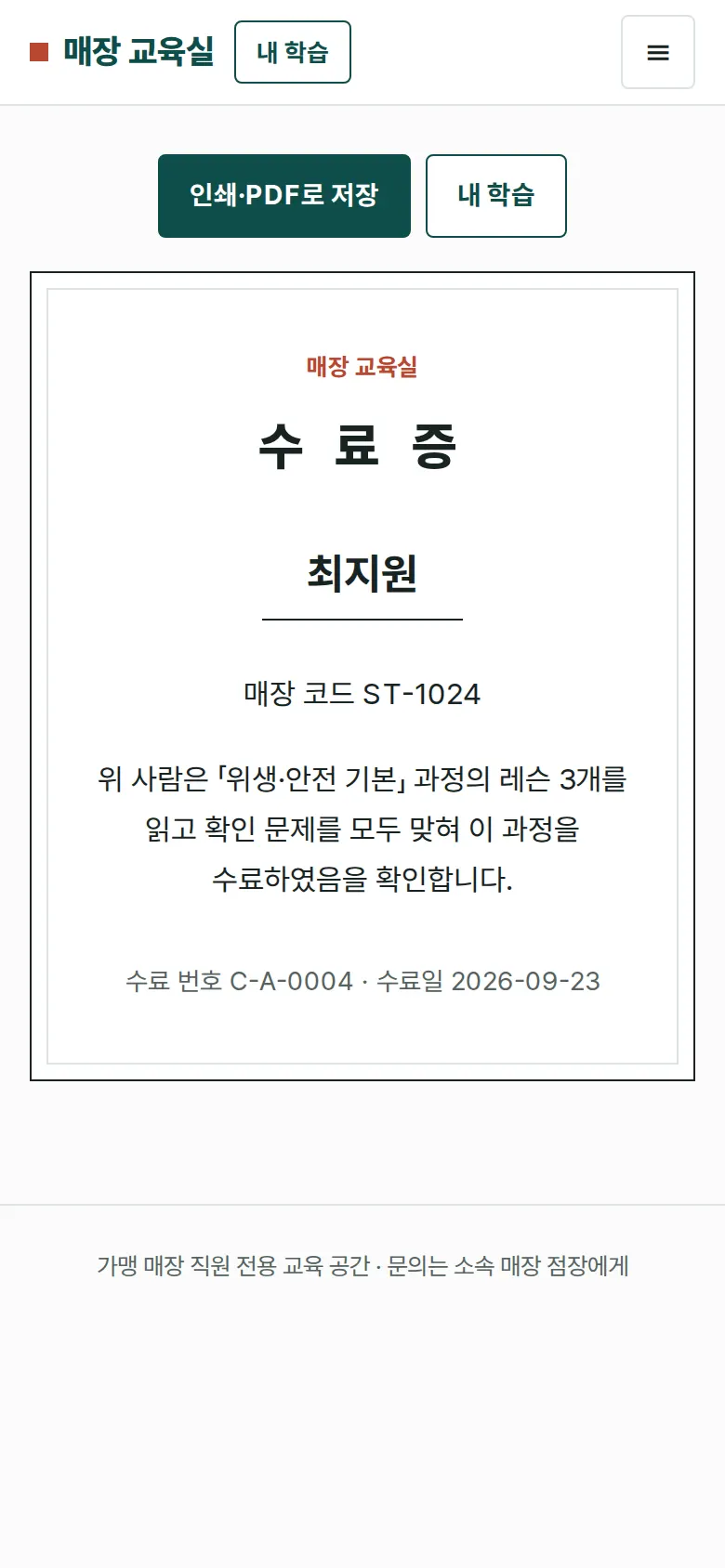
A certificate opens with name, store code, course, completion number and completion date, with a separate print layout so it can be printed or saved as a PDF.
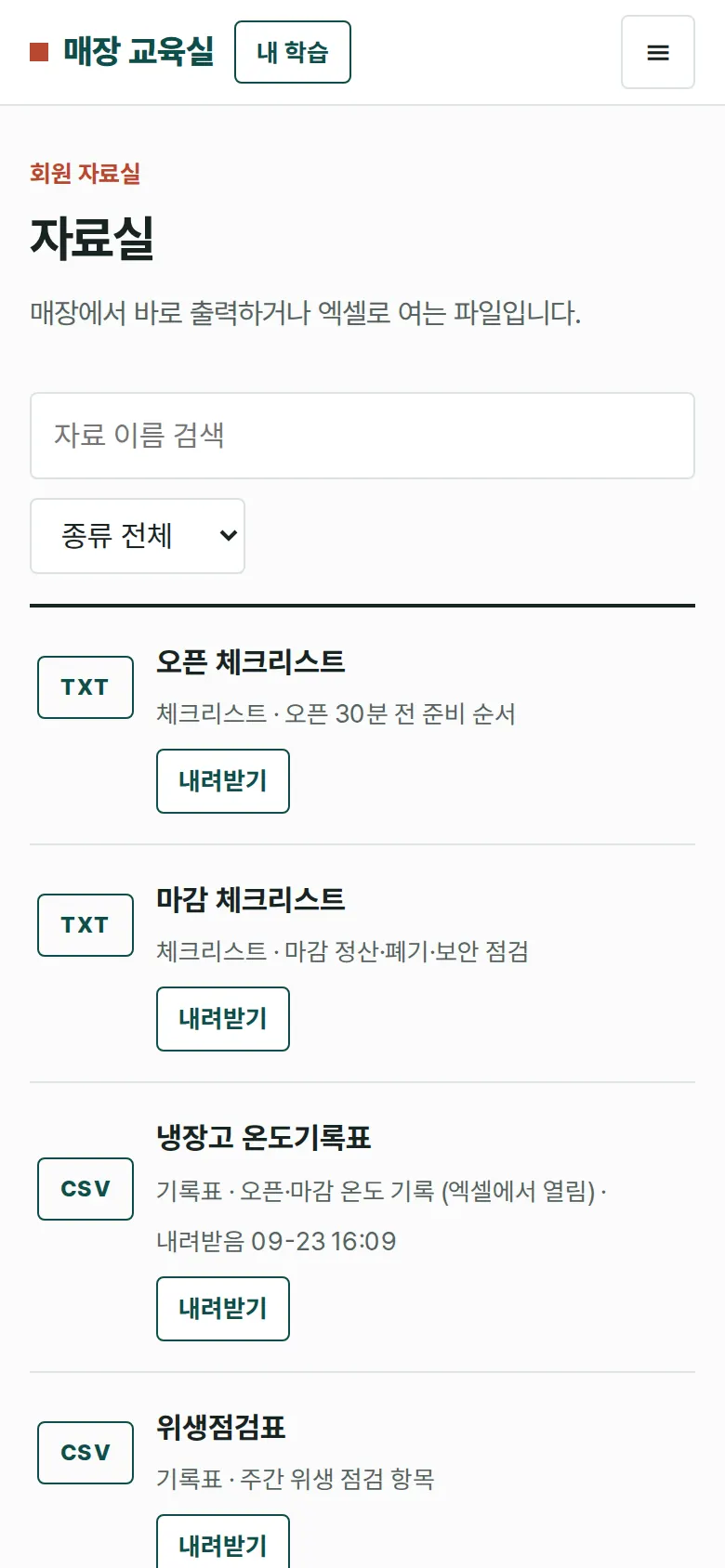
Resource Library — Filter and Download
Filter six checklists, logs and customer service materials by type and name. Only members can download, and the download date and time are kept next to the file and in My Learning.
- Store Completion Status — Store Managers OnlySigning up as a store manager shows a table of each staff member with the same store code: progress per course and whether required training is complete. On mobile the table becomes one card per person, and the status can be downloaded as a CSV.
- Sign Up and LoginCollects name, store code, role, email and password, and each field with a wrong format gets its own message. A visitor who signs up while trying to save progress returns to the screen they were on. Passwords are not stored as typed.
- My LearningProgress per course, certificates earned and downloaded resources are gathered on one screen. The home screen shows required training not yet finished first.
- Mobile MenuOn mobile, the menu button opens courses, library, my learning and completion status.
5. Build Notes
Show details
| Responsive | Layout changes at 900px and 760px. On PC there are two columns: the lesson list and a textbook-style page. Below 900px the list moves above the text; below 760px the menu folds into a button and the completion table turns into one block per person. |
| Fonts | Headings in Noto Serif KR, course numbers in Playfair Display, body in Pretendard (all free, open fonts). Hosted with the site, so no external requests, and subset to only the characters used: headings 104KB · numbers 21KB · body 107KB. |
| Images | No photos. Large course numbers, progress bars, checkmarks, "Good to know" boxes and the certificate border are drawn in CSS. |
| Motion | Screens change instantly. Save results are shown in a notice at the bottom, and the notice transition also stops when the device's reduce-motion setting is on. |
| Accessibility | Every input has a label, and each check question has a group heading. The current menu item and lesson are conveyed to screen readers, and errors appear in an area that is read aloud. Accessibility score 100. |
| Technology | HTML, CSS and JavaScript (no external libraries). Data is saved in browser storage (localStorage), and passwords are stored as SHA-256 hashes combined with the email. The completion status CSV is built so Korean text does not break in Excel. |
6. QA
Results from opening the site on PC 1440 and mobile 390 screens and clicking through in the order a real user would. We also checked that saved data is still there after a refresh. (2026-09-23) The same tests were also run on the Safari engine (WebKit) at PC and mobile sizes: 0 screen errors, all functions passed.
| Item | PC 1440 | Mobile 390 |
|---|---|---|
| Screen errors | 0 | 0 |
| Broken files | 0 | 0 |
| Horizontal overflow / clipped text | 0 | 0 |
| Function tests | 12 / 12 passed | 12 / 12 passed |
The 12 function tests: course list and required training on the home screen · opening and closing the mobile menu · reading lessons as a visitor and login prompt · sign-up (input checks, return to previous screen) · library filter, download and record · reading lessons and saving progress · check questions (explanations, completion when all correct) · certificate name and number · my learning (progress, completions, downloads) · store manager completion status and CSV · wrong password blocked after logout, and logging back in (records kept) · back button
Speed & quality scores (out of 100; mobile measured three times on a slow connection)
| Performance | Accessibility | Best Practices | SEO | |
|---|---|---|---|---|
| Mobile | 99 | 100 | 100 | 100 |
| PC | 100 | 100 | 100 | 100 |
Mobile: First Contentful Paint 0.9s · Largest Contentful Paint 2.3s · Layout shift 0 · Blocking time 0ms PC: First Contentful Paint 0.2s · Largest Contentful Paint 0.5s · Layout shift 0 · Blocking time 0ms
7. Result
Try it live ↗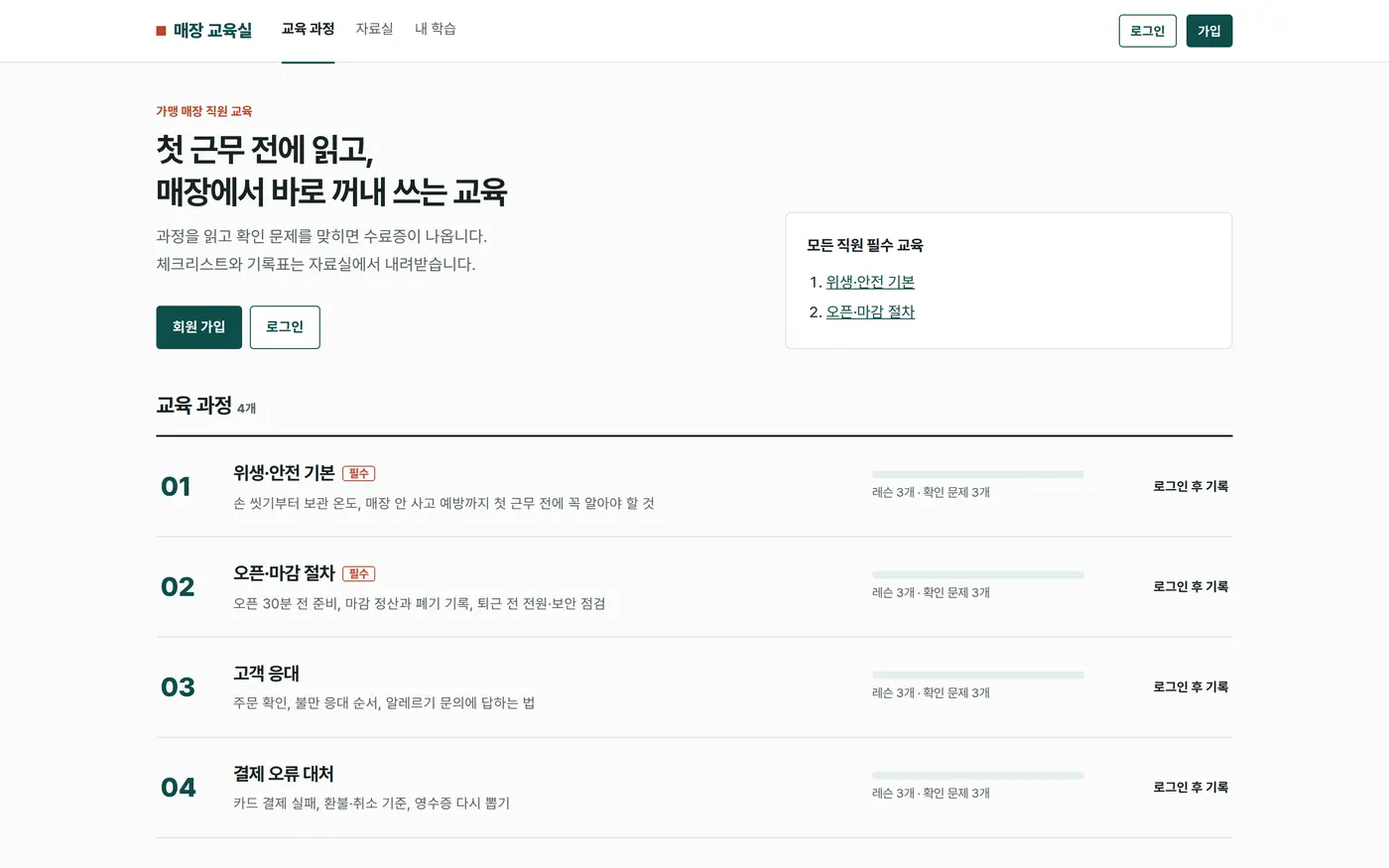
Privacy Policy