1. Overview
| Industry | Production and supply businesses, such as print and promotional goods, that quote every order and send a statement once the order is won |
| Purpose | A business tool that replaces copying and editing an Excel quote template with picking from a price list, and shows sent quotes and their order status in one list |
| Scope | 4 screens (Write Quote · Quote List · Quote & Transaction Statement · Clients & Price List) · 4 quote statuses · 3 default clients and 7 items |
| Main flow | Pick client → pick items → quantity and discount → VAT → save quote (numbered) → print / in the list: Sent → Won → create transaction statement → print |
Draft quotes, the quote list and statuses, statement numbers, clients, the price list, and your company details are saved in the browser. They stay in place after a refresh or a later visit. Uploaded files are read only inside this browser and are never sent anywhere.
Connected at rollout: e-tax invoice issuing, sending quotes by email or text (for now, print or save as PDF and send), adding a company seal image, and shared server storage for multiple users.
2. Challenges
1. One quote holds too many calculations.
Quantity × unit price × discount for each item, VAT added or included, and the amount written out in Korean words — done by hand, something ends up wrong.
2. No one knows where a sent quote stands.
When quote files just pile up in a folder, you can't see at a glance which ones were won and which are still waiting for a reply.
3. After winning an order, the statement is written again from scratch.
The same items and amounts are copied from the quote into the transaction statement. The statement should come straight from the won quote.
3. Structure
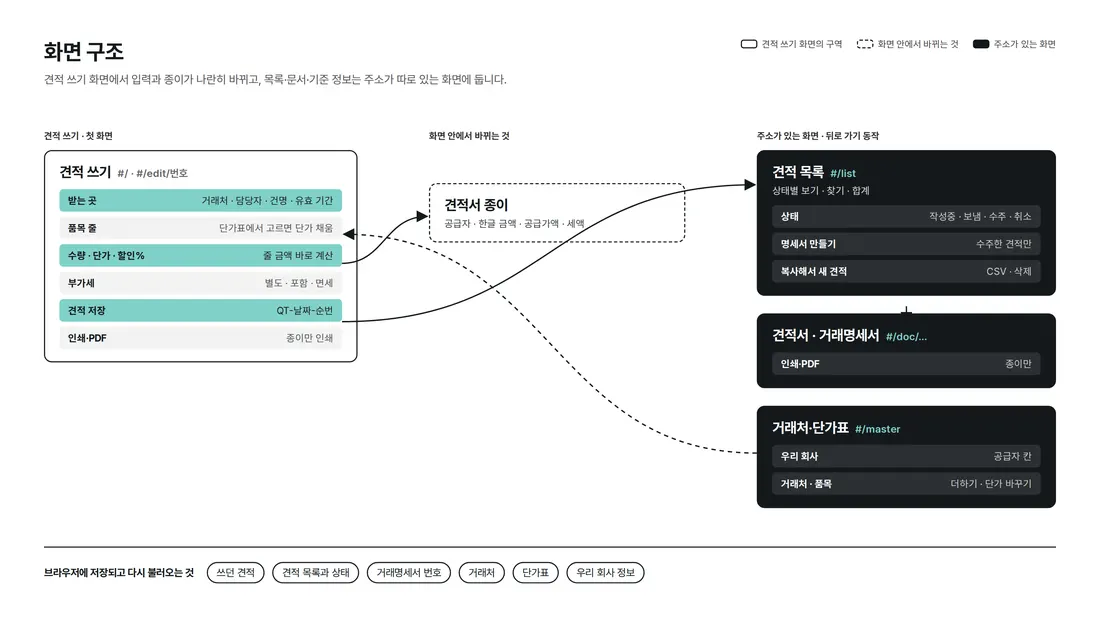
On the Write Quote screen, the form on the left and the quote sheet on the right update side by side. Quote List, Document View, and Clients & Price List each have their own address, so the back button and refresh keep you on the same screen.
4. Key Features
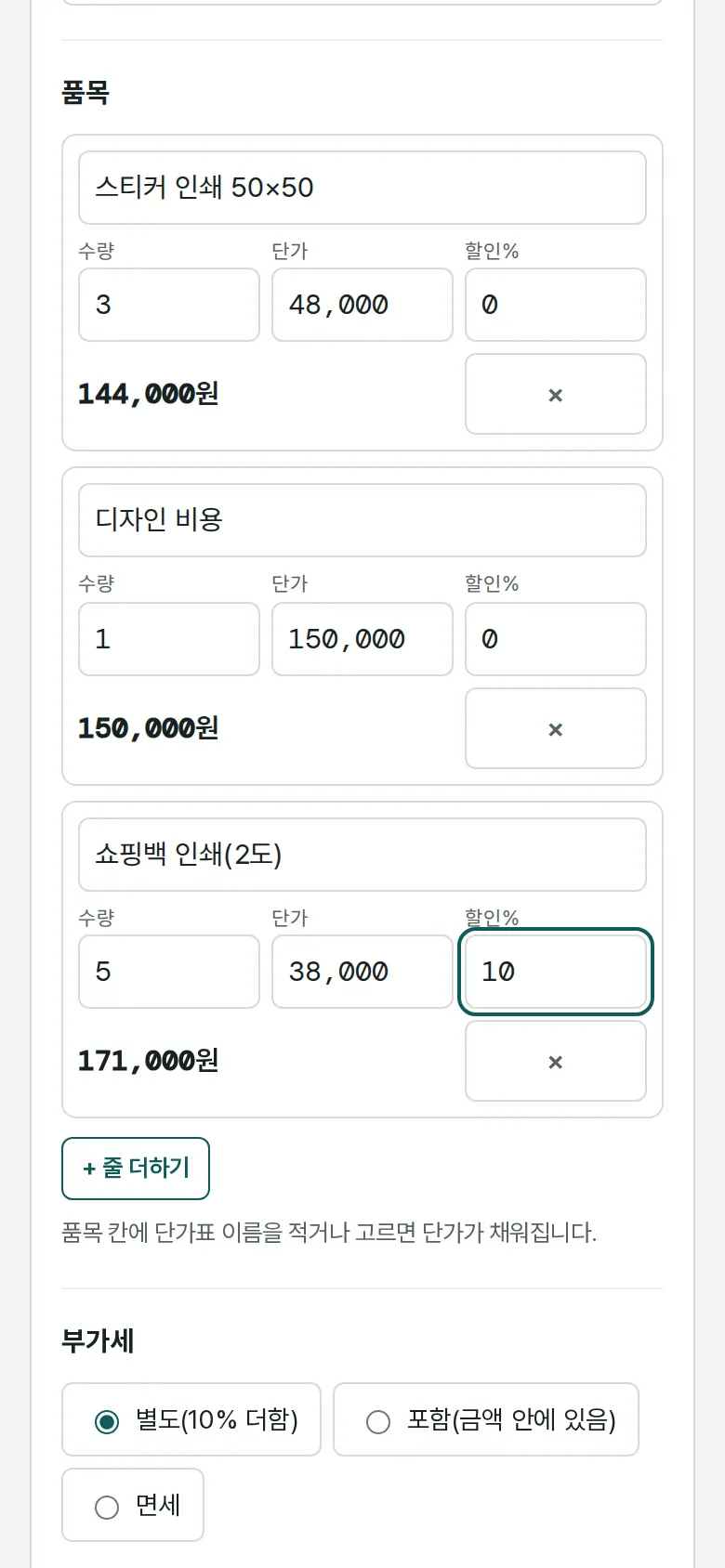
Write Quote — Pick from the Price List
Type or pick a price-list name in the item field, and the unit price and unit fill in. Change the quantity or discount rate and the line amount and the quote on the right update at once. A draft quote survives a refresh even before it is saved.
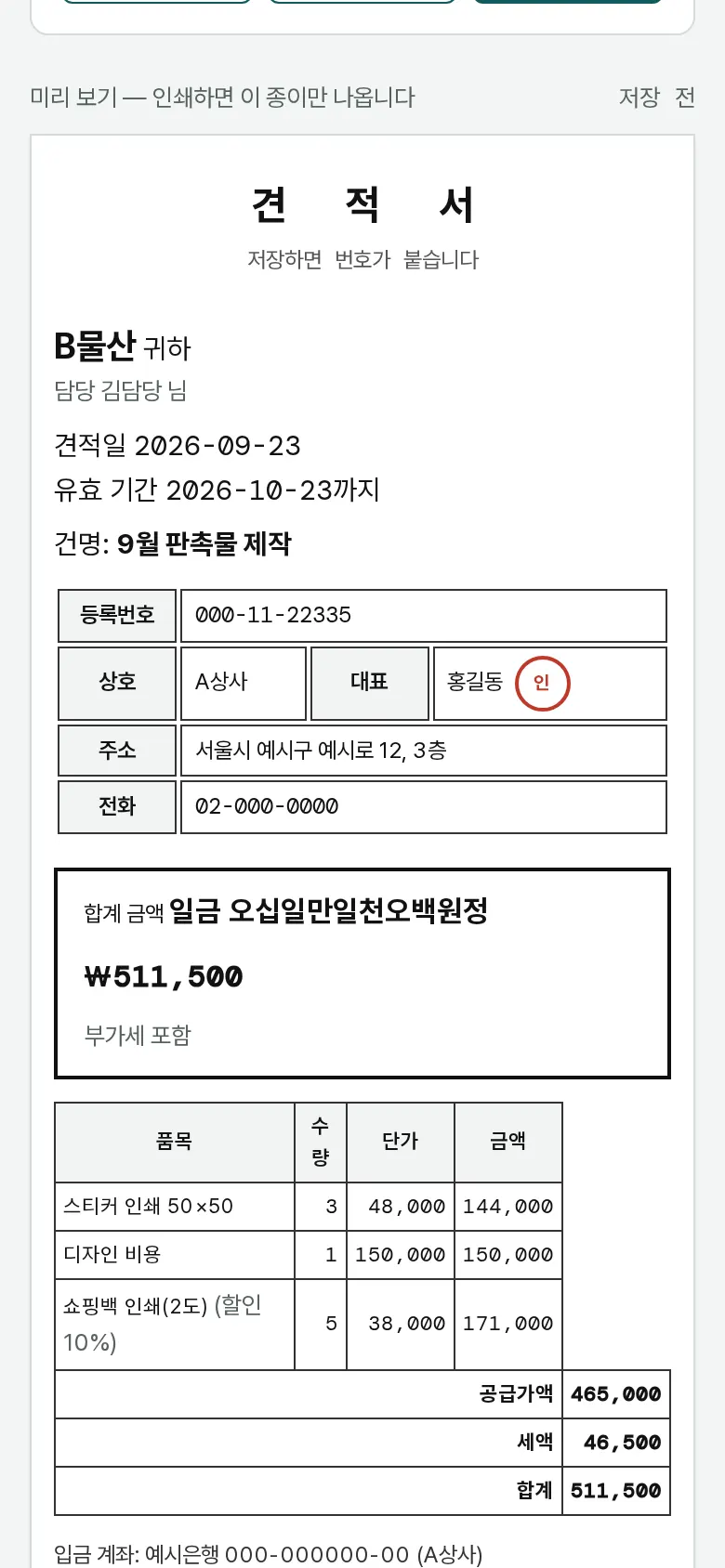
Quote Sheet — Amount in Words and VAT
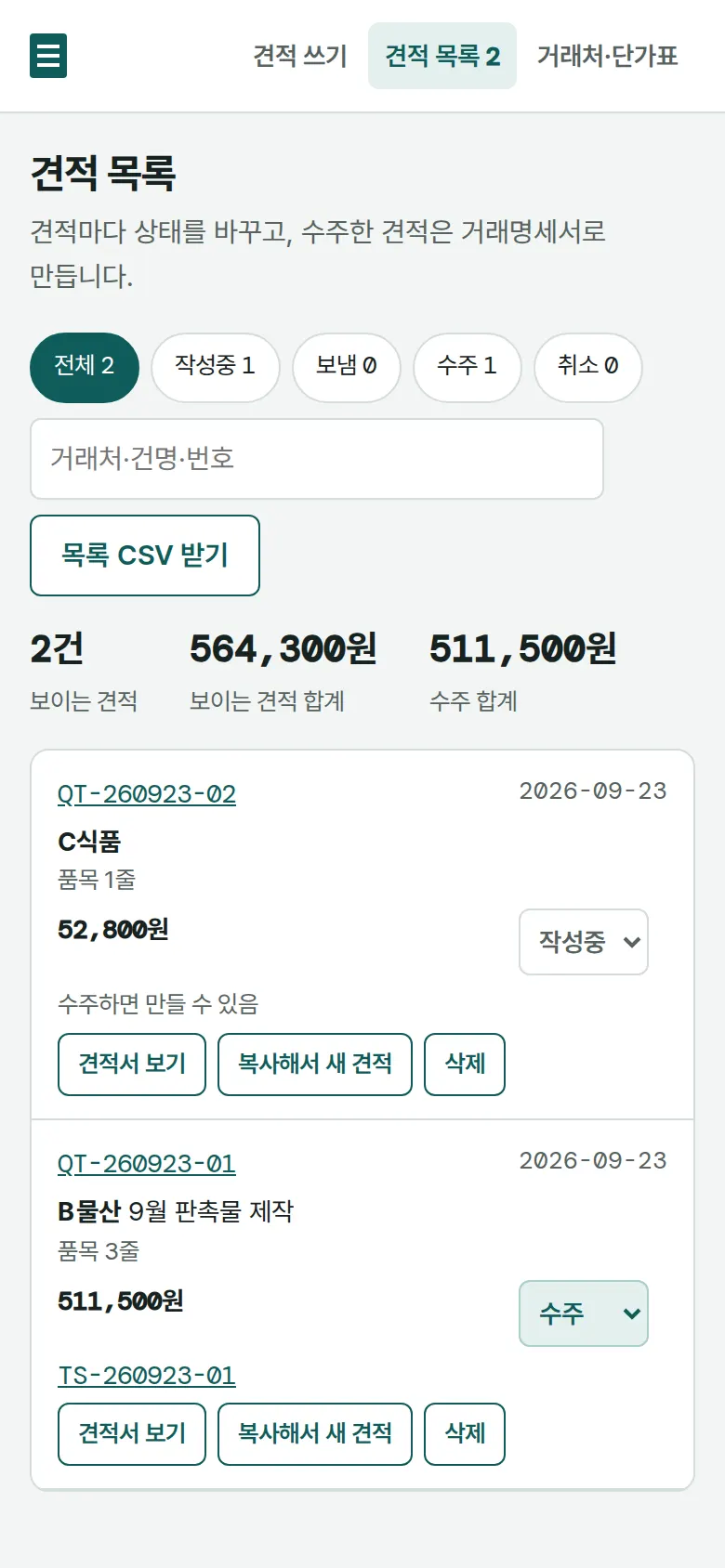
Quote List — Status Tracking
Set each quote to Draft · Sent · Won · Canceled, view by status, or search by client, title, or number. Shows the total of visible quotes and the total won, and exports the list as CSV.
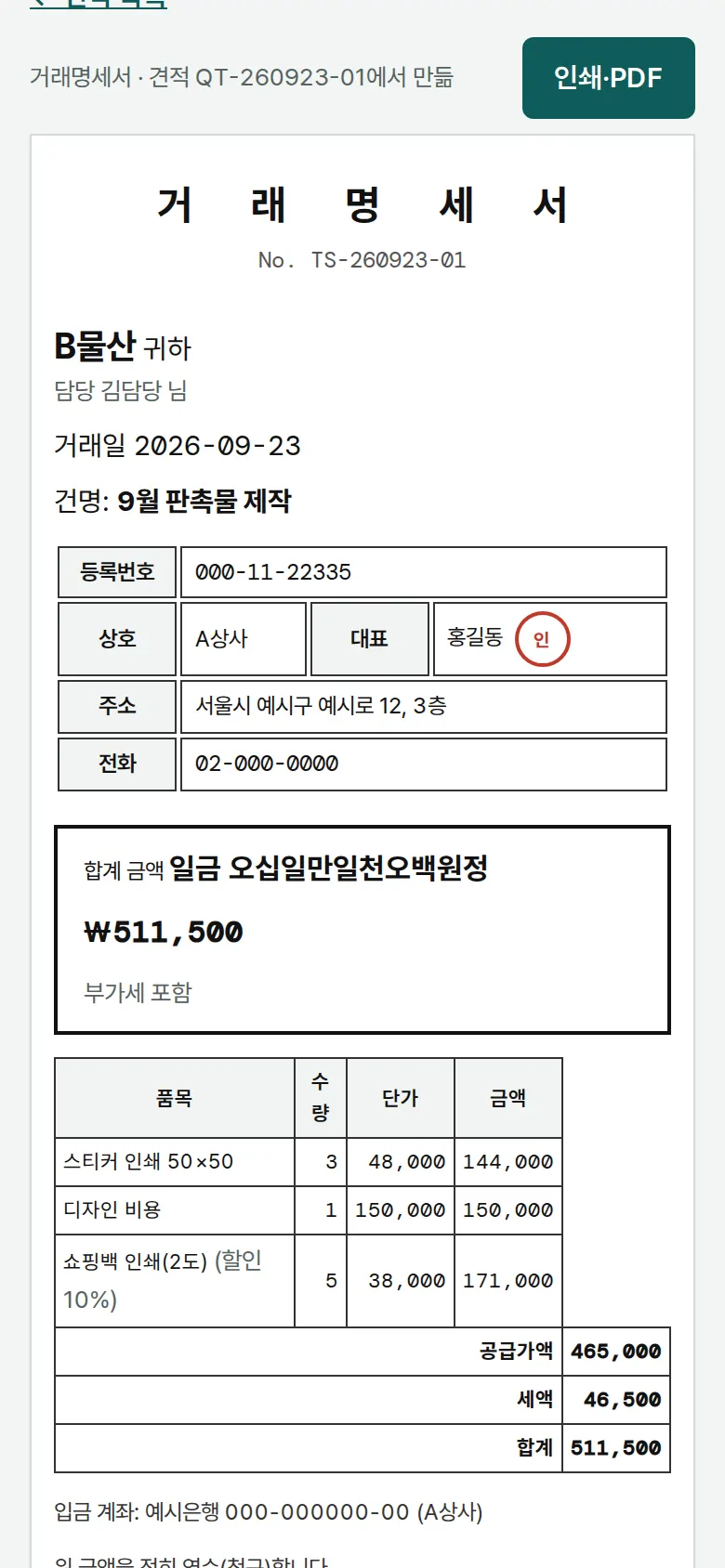
Won Order → Transaction Statement
Press "Create Statement" on a won quote to create a transaction statement with a TS number. No retyping of items and amounts — print it right away.
- Clients, Price List, and Your CompanyAdd clients and items or change unit prices, and the next quote uses them. Your company name, representative, business registration number, address, and phone go into the supplier block of the quote.
5. Build Notes
Show details
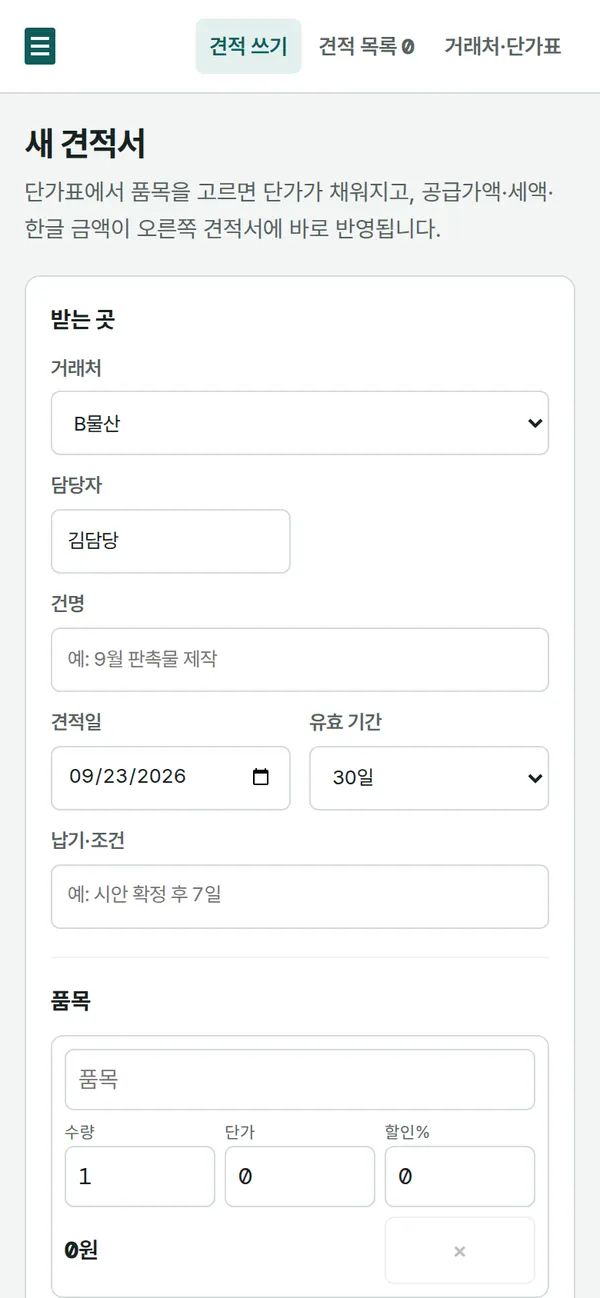
| Responsive | Layout changes at 1240 · 1040 · 760 · 640px. On PC, the form and quote sheet sit in two columns; below 1040px the sheet moves under the form; below 640px item lines become cards and the sheet's table text shrinks so nothing overflows. When printing, only the sheet remains. |
| Fonts | A paper-form feel — Song Myung for document titles, Hahmlet (serif) for body text, DM Mono for amounts (all free open fonts). Bundled with the site, so no external requests. The Korean font loads only the characters used on this screen first (71KB, titles 51KB); Korean characters that appear only in files a user uploads load on demand from the remaining 2,350-character file (276KB). Number font 29KB. |
| Images | No photos. Icons are drawn in SVG, so they stay sharp on any screen. |
| Motion | CSS transitions only, no libraries. Kept to notifications sliding up from the bottom; transitions stop when the device's reduce-motion setting is on. |
| Accessibility | Every input has a label, and main buttons are 44px tall for easy tapping. Status is shown with both color and text, and notifications are marked for screen readers. Buttons and inputs work with a keyboard. Accessibility score: mobile 100 · PC 100. |
| Tech | HTML, CSS, JavaScript (no external libraries). Pages and scripts total 87KB. Files open through the browser's file reader, and EUC-KR files saved from Excel are detected and re-read with the right encoding. Data is saved to and read from browser storage (localStorage), and downloaded CSVs open directly in Excel. Screens are split by address (#/…), so the back button works. |
6. QA
Results from running the pages on PC 1440 and mobile 390 screens and clicking through in the order a real user would. We also checked that data is still there after saving and refreshing. (2026-09-23)
| Item | PC 1440 | Mobile 390 |
|---|---|---|
| Screen errors | 0 | 0 |
| Broken files | 0 | 0 |
| Horizontal overflow · clipped text | 0 | 0 |
| Function tests | 18 / 18 passed | 18 / 18 passed |
The 18 function tests: picking a price-list item fills unit price and unit · adding lines and calculating discounts · amount in Korean words · switching VAT to included or exempt · draft quote kept after refresh · save quote → number assigned · blocking empty fields and zero quantity · changing status (Sent → Won) · status kept after refresh · won quote → create transaction statement · print view (sheet only) · back button · copy to a new quote → save · list filter by status and search · list CSV export · add a client → pick it in a quote · change a unit price → applied to new quotes · company details → shown on the quote · delete a quote
Speed and quality scores (out of 100; mobile measured three times on a slow connection, median shown)
| Performance | Accessibility | Best Practices | SEO | |
|---|---|---|---|---|
| Mobile | 95 | 100 | 100 | 100 |
| PC | 100 | 100 | 100 | 100 |
Mobile: First Contentful Paint 2.2s · Largest Contentful Paint 2.5s · Layout Shift 0.04 · Blocking Time 0ms PC: First Contentful Paint 0.5s · Largest Contentful Paint 0.5s · Layout Shift 0.01 · Blocking Time 0ms
7. Result
Try it live ↗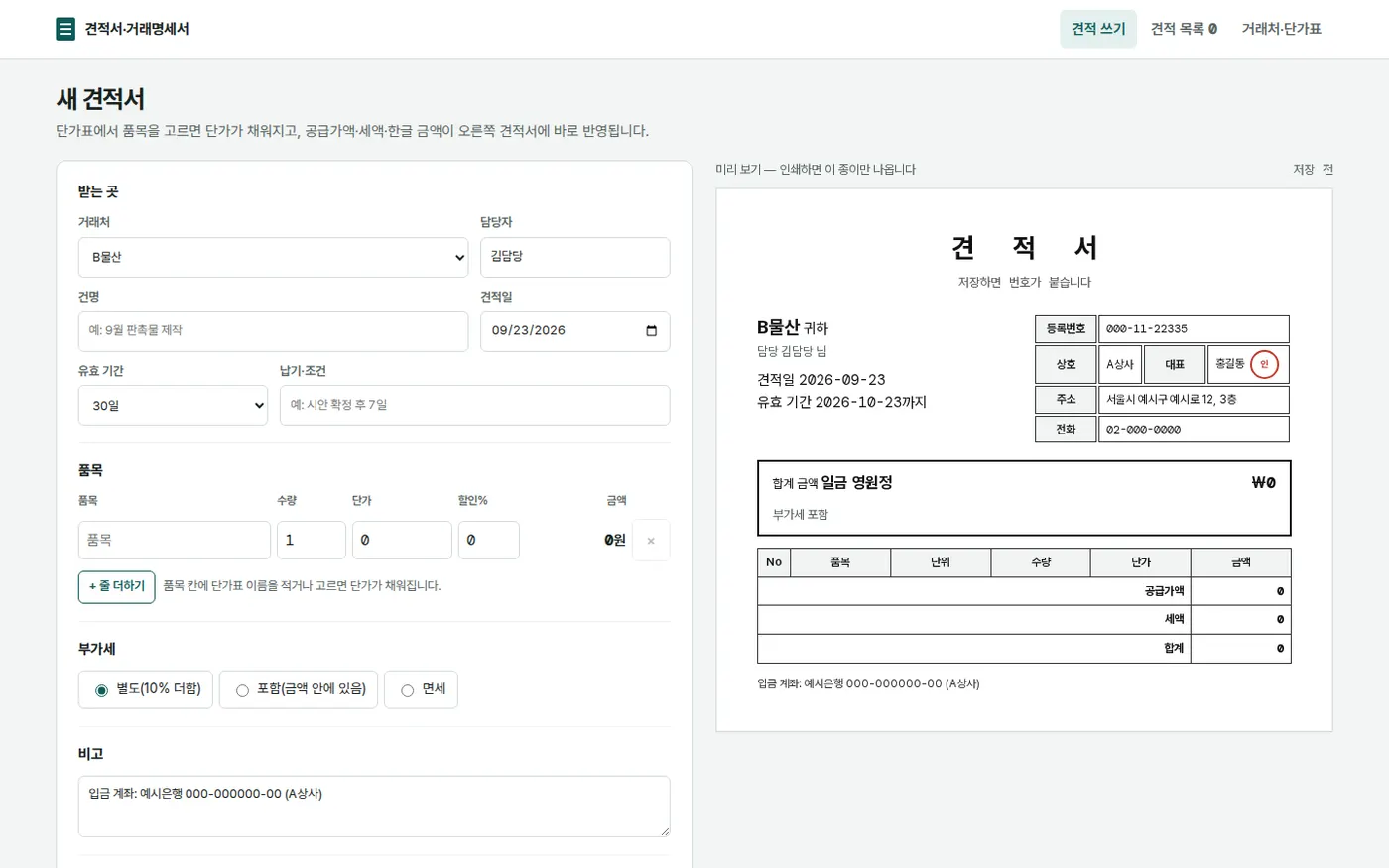
Privacy Policy