1. Overview
| Industry | Wholesale, retail, and online sellers who source goods from several suppliers |
| Purpose | A business tool that takes an inventory file, picks items below safety stock, suggests order quantities, and saves and downloads them as order lists by supplier |
| Scope | 3 screens with their own addresses (Order Calculation · Saved Lists · List View) · 1 save dialog · 11 columns used in calculation · 1 sample inventory file (24 items, 5 suppliers) |
| Main flow | Load inventory file → map columns → calculate order quantities → edit or exclude quantities → save → reopen saved list → CSV by supplier |
The loaded file, column mapping, edited quantities and excluded items, and saved order lists are saved in the browser. They stay in place after a refresh or a later visit.
Connected at rollout: automatic stock sync with store or warehouse software, emailing or faxing orders to suppliers, reading Excel (xlsx) files directly (for now, save as CSV and upload), and server storage for sharing the same list across devices.
2. Challenges
1. Orders are calculated by hand in Excel every time.
Add incoming stock to current stock, subtract outgoing orders, compare against safety stock, then round to minimum order quantity and box units — repeated for every item. Uploading the file should finish this calculation in one step.
2. One bad row breaks the whole calculation.
When rows with a missing supplier or text in a number field slip in, totals go wrong without anyone noticing. Rows that can't be read should be shown separately with the reason.
3. Orders go out to each supplier separately.
Splitting the results by supplier and pasting them again takes even more time. Items, quantities, and amounts should be grouped per supplier and ready to download.
3. Structure
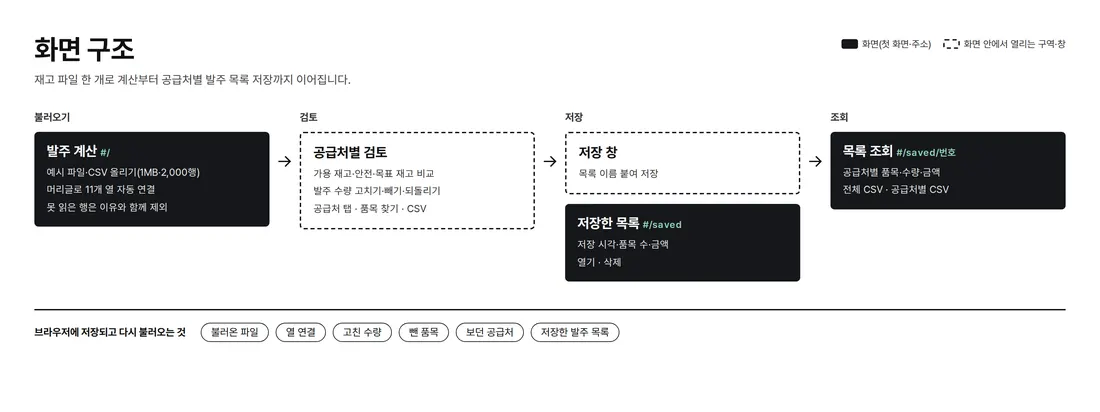
The calculation happens entirely on the first screen. File loading, column mapping, and calculation settings are on the left; results and supplier tabs are on the right. Saved Lists and List View have their own addresses, so the back button and refresh keep you on the same screen.
4. Key Features
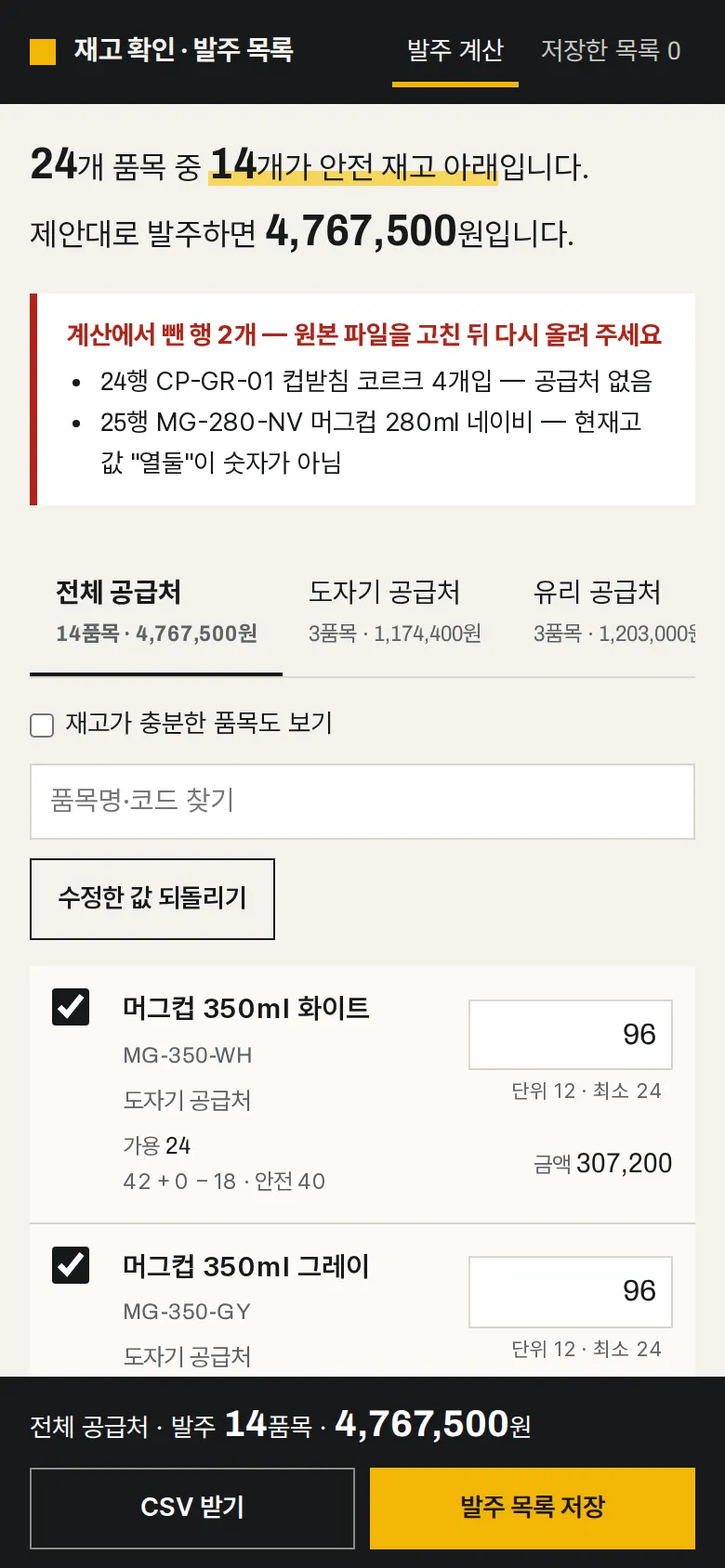
Order Quantity Calculation and Summary
Only items whose available stock (current + incoming − outgoing) is below safety stock remain. It suggests the larger of the amount needed to reach target stock and the minimum order quantity, rounded up to the order unit, and shows the number of items and the total cost of ordering as suggested in one line at the top.
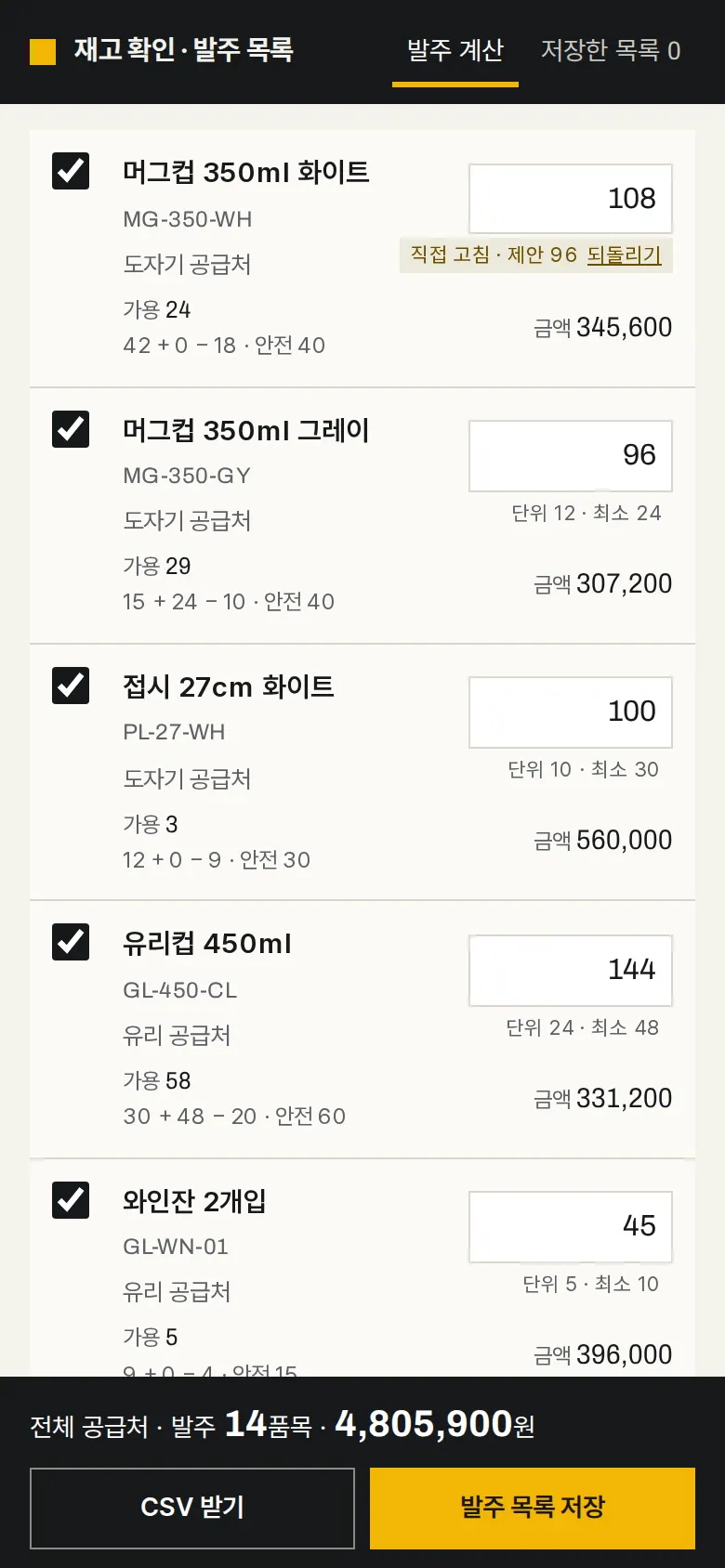
Edit, Exclude, and Reset Quantities
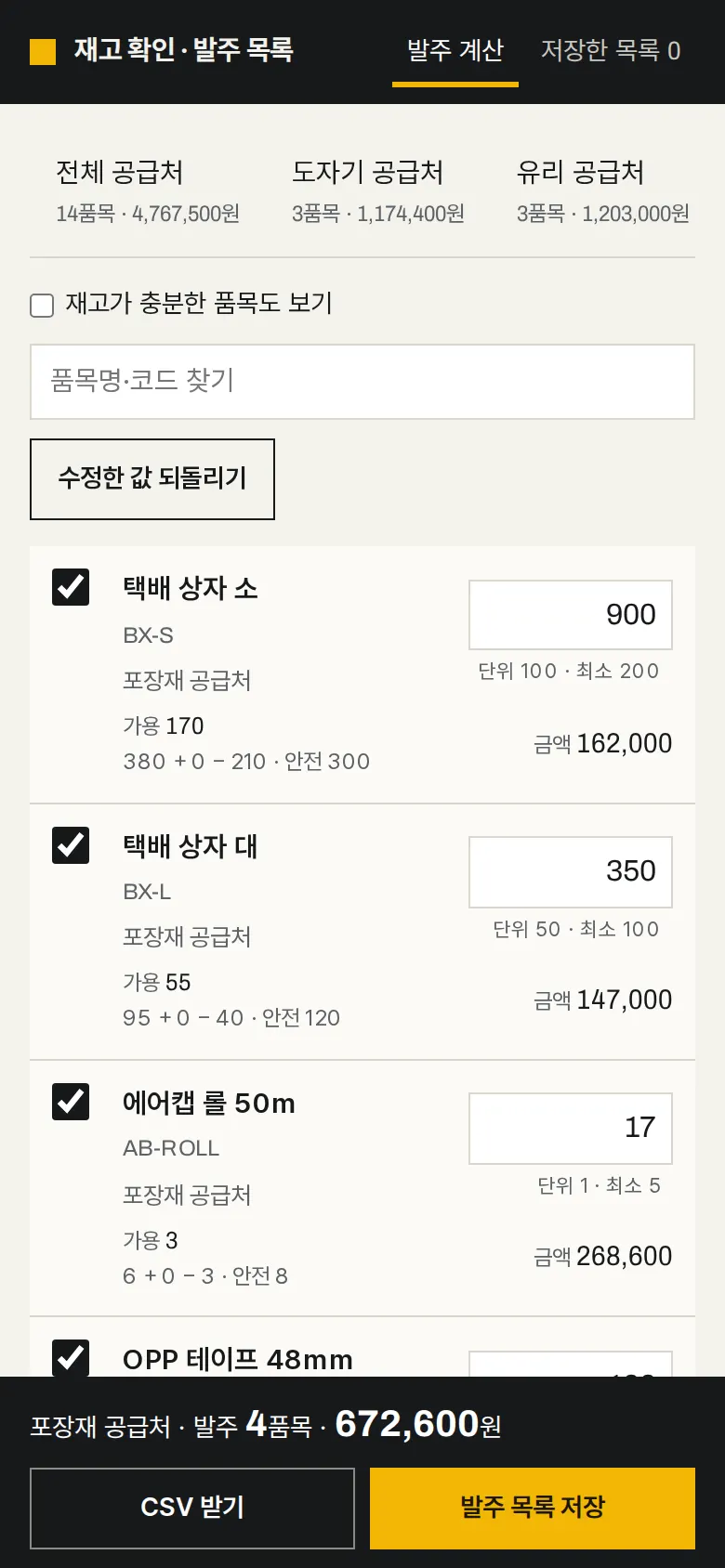
View by Supplier
Each supplier tab shows its item count and amount; tap one to see only that supplier's items. The total in the bottom bar and the CSV download follow the selected supplier.

Reopen Saved Order Lists
Name a list and save it; it is stored with the save time, file name, number of suppliers, and amount. Opening it shows tables split by supplier, and you can download all of it or one supplier as CSV. Lists you no longer need can be deleted.
- Notice for Rows Left Out
Rows with a missing supplier or text such as "열둘" (twelve, in words) in a number field are left out of the calculation, with the row number and the reason shown. Fix the source file and upload it again. - Column Mapping for Files with Different HeadersEleven columns such as item code, supplier, and current stock are mapped automatically by header name (SKU, vendor, stock, and so on). Required columns that aren't mapped are marked in red; pick one manually and it recalculates at once.
5. Build Notes
Show details
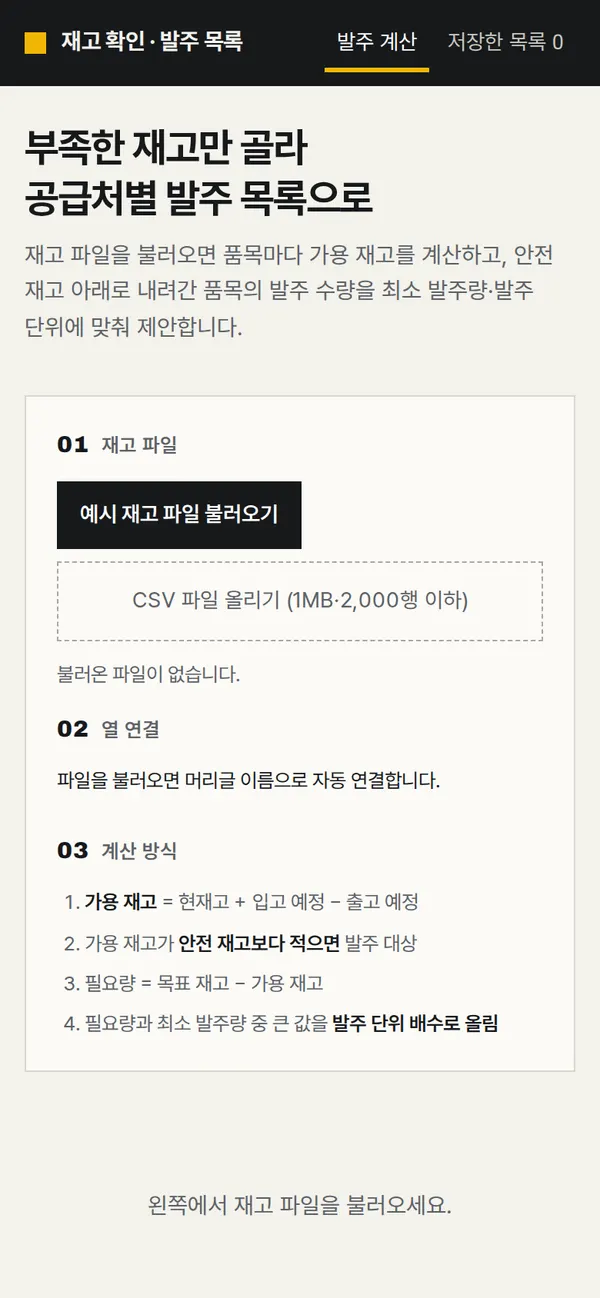
| Responsive | Layout changes at 980 · 720px. On PC, settings on the left and results on the right sit side by side, and items appear in a grid like warehouse shelf bins. Below 980px, results come first after a file is loaded and settings move below; below 720px shelf bins sit two per row, supplier tabs scroll sideways, and the buttons in the bottom total bar share one row. |
| Fonts | Black Han Sans for titles, Pretendard for body text, Archivo for numbers (all free open fonts). Trimmed to only the characters used on this screen, 187KB in total. |
| Images | A business screen with no photos. Status marks and tables are drawn with CSS. |
| Motion | No motion except notification text that briefly appears and fades. Even that stops when the device's reduce-motion setting is on. |
| Accessibility | Every input and checkbox has a label, and supplier tabs announce their tab role. Warnings use both color and text. Accessibility score 100. |
| Tech | HTML, CSS, JavaScript (no external libraries). Files are read and calculated only inside the browser and never sent anywhere. Korean CSVs saved from Excel (EUC-KR) are also read. Work and saved lists are stored in browser storage (localStorage), and downloaded CSVs are saved so Korean text doesn't break in Excel. Text from files is rendered as plain text only, so no tags run. |
6. QA
Results from running the pages on PC 1440 and mobile 390 screens and clicking through in the order a real user would. We also checked that data is still there after saving and refreshing. (2026-09-23)
| Item | PC 1440 | Mobile 390 |
|---|---|---|
| Screen errors | 0 | 0 |
| Broken files | 0 | 0 |
| Horizontal overflow · clipped text | 0 | 0 |
| Function tests (Chrome) | 16 / 16 passed | 16 / 16 passed |
| Function tests (Safari engine) | 16 / 16 passed | 16 / 16 passed |
The 16 function tests: first screen display · loading the sample inventory file and calculating · checking calculated values (available stock, unit rounding) · notice for rows left out · column mapping display · view by supplier · editing quantities, unit warning, reset · excluding items · item search · work kept after refresh · CSV download · saving an order list · viewing saved lists after refresh · supplier CSV from a saved list · uploading a file with different headers and mapping columns manually · deleting a saved list
Speed and quality scores (out of 100; mobile measured three times on a slow connection, median shown)
| Performance | Accessibility | Best Practices | SEO | |
|---|---|---|---|---|
| Mobile | 100 | 100 | 100 | 100 |
| PC | 100 | 100 | 100 | 100 |
Mobile: First Contentful Paint 1.0s · Largest Contentful Paint 1.3s · Layout Shift 0.000 · Blocking Time 60ms PC: First Contentful Paint 0.4s · Largest Contentful Paint 0.4s · Layout Shift 0.000 · Blocking Time 0ms
7. Result
Try it live ↗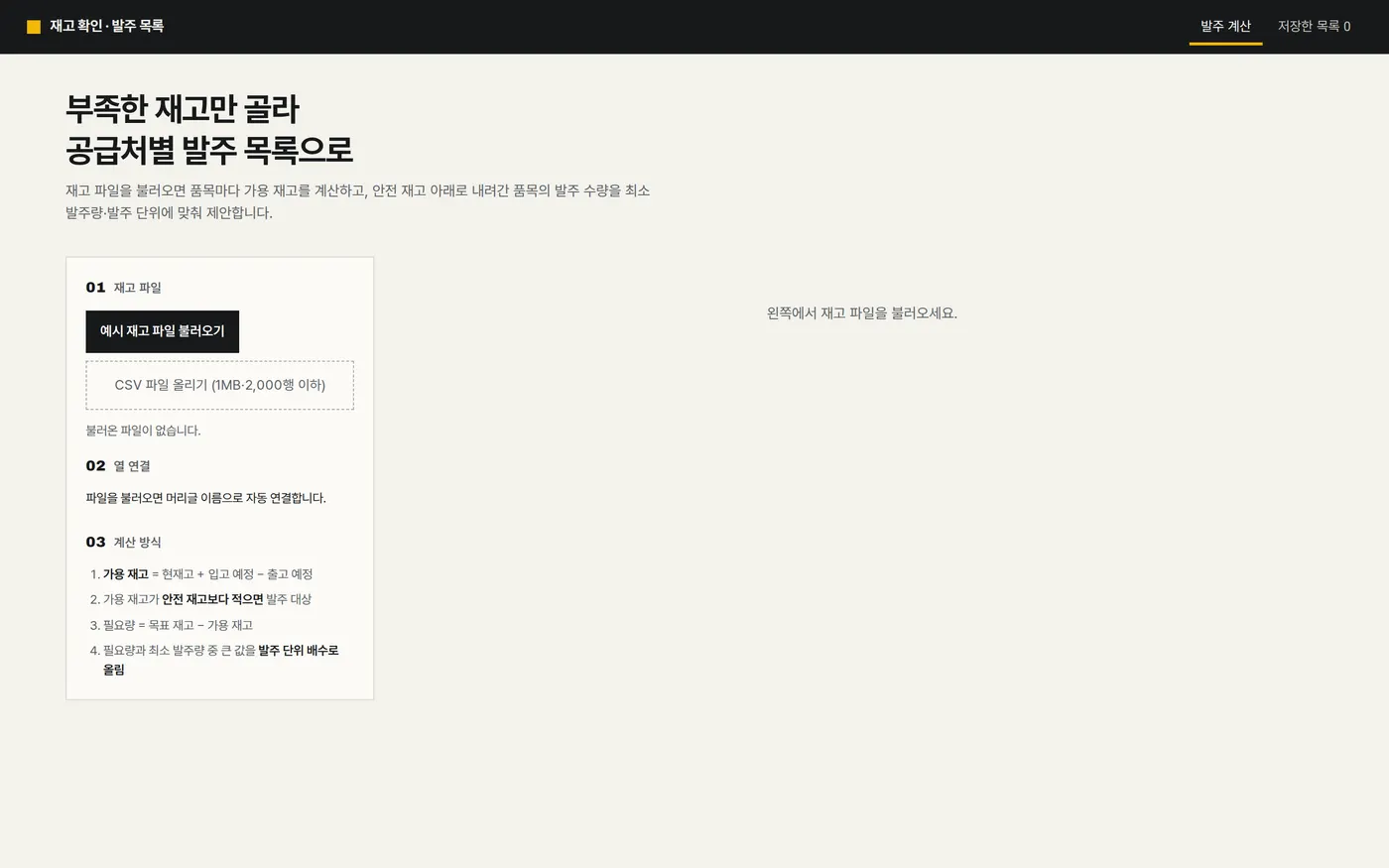
Privacy Policy